
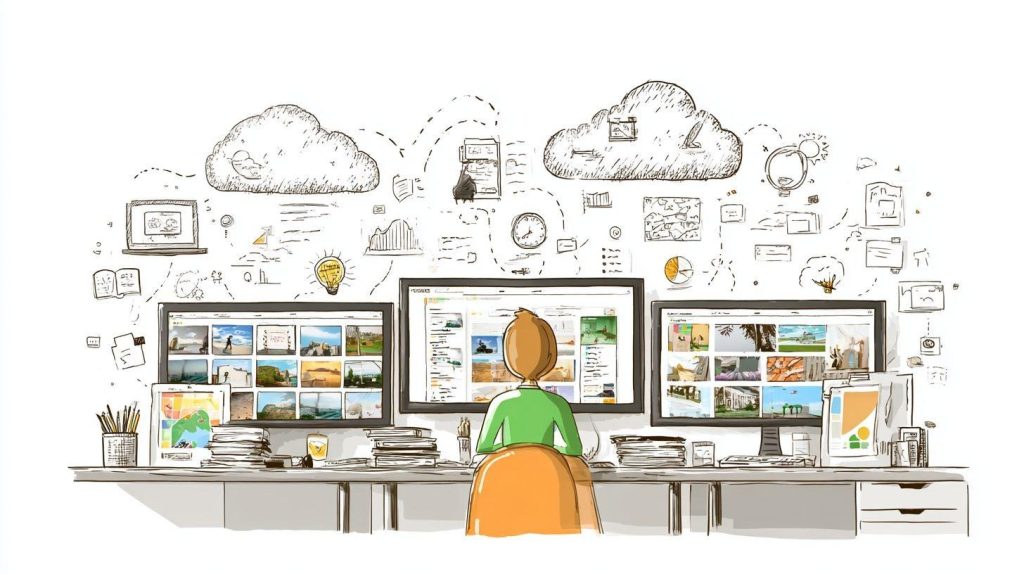
Imagine reclaiming hours lost to frantic file hunts amid a chaotic digital hoard. For creative professionals, effective digital asset management (DAM) transforms disarray into streamlined productivity. This guide explores essential strategies-from assessing needs and selecting tools like Adobe Creative Cloud integrations, to mastering metadata, versioning, backups via the 3-2-1 rule, and securing scalable workflows. Discover how to future-proof your assets and unleash creativity.
Why Creatives Need DAM
Freelance photographers lose 12 hours weekly searching for images without DAM, per 2023 Creative Bloq survey of 2,500 professionals. This time sink disrupts creative workflows and delays client deliveries. Digital asset management changes that by streamlining access to media files like images and videos.
Creatives gain specific benefits from DAM strategies. For instance, asset retrieval becomes much faster, as shown in a Bynder study. It also cuts down on duplicate files significantly, with reductions up to 40%.
- Instant client proofing lets teams share assets securely for quick feedback.
- Team collaboration works smoothly across 5+ timezones with role-based access and notifications.
- Metadata tagging and AI-powered search boost asset searchability.
- Version control prevents errors in handling Photoshop assets or Premiere Pro footage.
Consider a photographer who scaled from 500 to 5,000 assets. Without DAM, folder structures became chaotic, leading to lost files and rework. Implementing cloud storage with deduplication and keyword tagging organized their library, enabling quick retrieval and efficient scaling for larger projects.
Experts recommend DAM for storage optimization and scalability. It supports asset libraries with thumbnail previews and zoom views. Creative professionals save time on content creation, focusing more on innovation.
Common Challenges in Asset Organization
Research suggests creative teams often face file not found issues weekly due to poor folder structures and inconsistent naming. These problems disrupt creative workflows and waste valuable time during content creation. Addressing them requires targeted DAM strategies.
Version confusion arises with files like v2_final_final.docx, making it hard to track changes. This leads to using outdated assets, causing errors in client deliverables. Adopt version control systems to maintain clear histories and avoid mix-ups.
Scattered storage across Dropbox, Google Drive, and desktop folders fragments media files, images, and videos. Teams lose hours hunting for assets, slowing down projects. Centralized asset libraries with cloud storage unify access and improve asset searchability.
Without metadata tagging, searching for a single image can take 20 minutes or more. Valuable time slips away, delaying deadlines for designers and videographers. Implement keyword tagging and AI tagging for quick retrieval.
Client revisions get buried in endless email threads, leading to overlooked updates on graphics or documents. This risks delivering incorrect versions and frustrates collaboration. Use approval workflows in a DAM to track changes securely.
Assessing Your Digital Asset Needs
Conducting a DAM audit reveals most creative professionals have 3-5x more assets than they realize across fragmented storage solutions. This self-assessment prevents overspending on the wrong DAM solution. It sets the foundation for effective asset organization and workflow improvements.
Start with an inventory checklist to catalog your media files, including images, videos, and graphics. Then map your current creative workflows to spot inefficiencies. This process highlights needs like metadata tagging and version control.
Experts recommend reviewing storage across cloud services, local drives, and creative tools like Photoshop or Premiere Pro. Common issues include asset duplication and poor file naming conventions. Addressing these early ensures scalable digital asset management.
After assessment, prioritize features such as folder structures, asset libraries, and collaboration tools. This targeted approach supports content creation for freelancers, design teams, and agencies. It leads to better storage optimization and team productivity.
Inventorying Current Assets
Use TreeSize Free or WizTree to scan drives. Most creative professionals discover 200GB+ of forgotten assets in the first scan. This step uncovers images, videos, graphics, and documents scattered across devices.
Follow this numbered checklist for a complete inventory:
- Scan all drives with tools like TreeSize or Storage Analyzer to measure usage.
- Categorize assets by type, such as images, videos, documents, and audio files.
- Tag duplicates using Duplicate Cleaner Pro to identify redundancies.
- Export a CSV inventory for analysis and future reference.
Expect this to take about 4 hours for a typical creative’s library. Organize findings into a spreadsheet template with columns for file path, size, type, and date. This aids deduplication and asset archiving.
Focus on file naming conventions during categorization. For example, rename IMG_001.jpg to project_logo_v1_final.jpg. This improves asset searchability and prepares for DAM migration.
Identifying Workflow Pain Points
Time-motion studies show creative professionals waste significant time on asset hunting and version conflicts. Pinpoint these issues with a simple 5-question assessment. It scores your readiness for better DAM strategies on a 0-100 scale.
Ask yourself these questions:
- How many hours per week do you spend searching for files?
- How many storage apps or locations do you use, like cloud storage and local folders?
- How often do version conflicts arise per project, especially with team edits?
- How long does client delivery take due to asset retrieval delays?
- Do team access issues slow down collaboration, such as permissions or sharing problems?
Map your creative workflows using a simple template: list steps from ingest to delivery, noting bottlenecks. For instance, track time spent in Illustrator files or Premiere Pro footage hunts. This reveals needs for approval workflows and role-based access.
Low scores indicate priorities like keyword tagging, AI tagging, or integration with tools like Creative Cloud. Address pain points to boost retrieval speed and reduce frustration. This leads to smoother team sharing and efficient content creation.
Choosing the Right DAM Tools
Select from 50+ DAM solutions based on team size: freelancers need Canto at around $20 per user per month, agencies require Bynder with enterprise pricing. Wrong choice costs 6 months lost productivity for creative teams handling images, videos, and graphics. Preview our comparison methodology focusing on creative-specific features like AI tagging and Creative Cloud integration.
Creative professionals benefit from tools that support asset organization through metadata tagging and folder structures. For example, photographers managing large libraries of raw images need fast retrieval speed and version control. Agencies with design teams require scalability for collaborative workflows.
Evaluate options using criteria like integration APIs, mobile access, and usage analytics. Freelancers prioritize simple setup and cost efficiency, while enterprises focus on compliance standards and data security. This approach ensures alignment with content creation needs.
Next, compare deployment models to match your infrastructure. Cloud solutions offer flexibility, on-premise provides control, and hybrid balances both. Use these insights to build effective DAM strategies.
Cloud vs. On-Premise Solutions
Cloud DAM solutions suit most creative professionals with their ease of use. They provide instant access from any device, supporting remote teams in sharing Photoshop assets or Premiere Pro footage. Experts recommend them for faster adoption rates.
On-premise options give full control over data security and customization. They work well for teams with strict compliance needs, like GDPR, but require IT support for setup and maintenance. Hybrid models combine benefits for balanced performance.
| Aspect | Cloud (e.g., Bynder) | On-Premise (e.g., Adobe Experience Manager) | Hybrid (e.g., Widen) |
| Scalability | Unlimited scale | Limited by hardware | Flexible scaling |
| Pricing | $30-120/user/mo | $50K+ setup | Subscription + setup |
| Access | Instant, browser-based | IT required | Both options |
| Maintenance | Vendor-managed | In-house | Shared |
Use cases include cloud for freelance videographers uploading bulk media files, on-premise for enterprise marketing teams with custom integrations, and hybrid for agencies needing local backups. Consider total cost of ownership through factors like user training and storage optimization.
Key Features for Creatives
Prioritize facial recognition search, Creative Cloud sync, and mobile apps, features missing in many legacy systems. These enhance asset searchability for illustrators tracking Illustrator files or animators managing video clips. AI-powered tools speed up workflows significantly.
Top features include version comparison for non-destructive editing and auto-renditions for multi-format output. Brand portals ensure consistent style guides across teams. Mobile DAM apps allow on-the-go access to thumbnail previews and zoom views.
- AI search with object detection like Google Cloud Vision
- Creative Cloud plugin for seamless Photoshop integration
- Version comparison for tracking changes
- Auto-renditions for web-optimized images
- Brand portal for template libraries
- Mobile DAM app for field access
- API marketplace for Figma plugins
- Usage analytics for trend analysis
Check off these in your evaluation to support creative workflows. For instance, rights management tracks licensing for stock images, while deduplication optimizes storage for graphics libraries.
Popular Tools Comparison
Bynder leads in creative satisfaction for agencies handling complex approvals. It excels in workflow automation and brand asset portals. Adobe Experience Manager suits enterprises with deep customizations.
| Tool | Starting Price | Creative Score (G2) | Best For | Limitations |
| Bynder | $450/mo | 9.2 | Agencies | Expensive |
| Adobe Exp Mgr | Custom | 8.1 | Enterprises | Complex |
| Canto | $25/user | 9.0 | Freelancers | Limited APIs |
| Widen | $200/mo | 8.8 | Teams | Slower support |
| Acquia | Custom | 8.5 | Drupal users | Drupal-only |
| ResourceSpace | Free | 8.2 | Budget | Basic features |
Match tools to needs: Canto for solo content strategists, Widen for collaborative design teams. Consider integration with tools like InDesign for smooth asset libraries. Acquia fits Drupal-based sites, ResourceSpace for basic metadata tagging.
- Small teams: Canto or ResourceSpace for cost efficiency
- Mid-size agencies: Widen or Bynder for scalability
- Enterprises: Adobe or Acquia for advanced compliance
Building an Effective Folder Structure

Effective folder systems reduce navigation time, as shown in usability studies from the University of Westminster. For creative professionals managing over 10K assets, folders work best alongside metadata tagging. This hybrid approach combines structured paths with searchable tags for quick access.
Poor folder setups lead to lost files and wasted hours. A clear folder structure supports smooth creative workflows, from initial shoots to final exports. Pair it with preview thumbnails to spot assets instantly.
Start with broad categories like projects or clients, then add subfolders for asset types. Use preview hybrid folder+tag systems in tools like Adobe Bridge or cloud storage. Tags handle variations that folders cannot, boosting asset searchability.
Experts recommend consistent naming across teams. This prevents confusion in collaborative environments. Regular audits keep structures scalable as libraries grow.
Project-Based Organization
Structure your folders with Client/Project/AssetType/Date, for example, Nike/Campaign2024/Social/240101_instavideo.mp4. This project-based organization keeps media files like images, videos, and graphics logically grouped. It streamlines digital asset management for creative professionals.
Use this exact template: 01_Active_Clients/|ClientName/ProjectName/|RAW/|Exports/|Social/|Print/|Archive/. Numbers prefix folders for automatic sorting. Limit depth to avoid buried files.
Follow these five key rules:
- Numbers first for sort order, like 01_Active before 02_Archive.
- Client name first to group work easily.
- Maximum three sublevels to maintain simplicity.
- Consistent casing, such as all lowercase or CamelCase.
- No spaces; use underscores or hyphens instead.
This setup aids version control and asset archiving. Teams access files faster, reducing errors in content creation.
Date and Client Naming Conventions
Use YYYYMMDD_ClientName_RevisionType.ext, such as 20240115_NikeQ1_Social_V2.ai. Consistent file naming conventions enhance retrieval speed in large asset libraries. They support hybrid DAM strategies with metadata tagging.
Apply these five rules for every file:
- ISO date format like YYYYMMDD for global sorting.
- Client prefix, maximum eight characters, e.g., NikeQ1.
- Descriptive suffix for context, like SocialPost.
- Revision markers as V1, V2, or FINAL.
- Total length under 50 characters.
Here are ten before-and-after examples:
| Before | After |
| image_final_v2.jpg | 20240115_NikeQ1_Print_FINAL.jpg |
| video_client1.mp4 | 20240201_Adidas_Social_V1.mp4 |
| logo.ai | 20240110_Puma_Logo_V3.ai |
| photo raw.psd | 20240320_Canon_RAW_V1.psd |
| banner ad.png | 20240125_Google_Banner_V2.png |
| intro_music.wav | 20240210_Spotify_Intro_V1.wav |
| mockup.indd | 20240118_Apple_Mockup_FINAL.indd |
| storyboard.pdf | 20240305_Disney_Storyboard_V2.pdf |
| asset1.mov | 20240228_Ford_Video_V1.mov |
| design_doc.docx | 20240122_IKEA_Design_FINAL.docx |
Automate in Adobe Bridge with this script: Select files, go to Tools > Batch Rename, set patterns for date, client, and version. It saves time on bulk uploads. This boosts creative workflows and team sharing.
Mastering Metadata and Tagging
Proper metadata tagging boosts asset findability significantly for creative professionals. Manual tagging takes about 2 minutes per image, while AI tools cut that to 2 seconds. This shift improves workflows in digital asset management.
Preview metadata fields before applying changes to avoid errors. Use automation scripts for batch processing across images, videos, graphics. Hierarchies organize tags logically, like Brand > Category > Color.
Start with consistent file naming conventions alongside tags. Integrate tools like Adobe Bridge for previews and edits. This setup enhances asset searchability in DAM systems.
Test hierarchies on small batches first. Review and refine quarterly to match evolving projects. These practices streamline creative workflows and reduce retrieval time.
Essential Metadata Fields
Focus on 10 core fields for effective metadata: Title, Creator, Client, Project, DateCreated, Keywords, UsageRights, ExpirationDate, DPI, ColorProfile. These fields form the backbone of asset organization. They support quick searches in DAM libraries.
Set up IPTC or XMP standards in your software. Use ExifTool for bulk edits on existing files. This ensures compatibility across tools like Photoshop and Premiere Pro.
| Field | Example | Why Required | Tool to Auto-fill |
| Title | Nike Q1 Hero Banner | SEO and identification | Filename parser |
| Keywords | blue, shoes, product | Search and filtering | AI Tagger |
| Rights | Client Internal Use | Licensing and rights management | ExifTool |
| Creator | Jane Doe | Attribution | Camera EXIF |
| Client | Nike | Project sorting | Folder scan |
| Project | Q1 Campaign | Workflow grouping | Adobe Bridge |
| DateCreated | 2024-01-15 | Timeline sorting | EXIF reader |
| UsageRights | Web only | Compliance | Template apply |
| ExpirationDate | 2024-12-31 | Licensing tracking | Script calculator |
| DPI | 300 | Output quality | Image analyzer |
Embed these in files during ingest. Automate with scripts for new uploads. This practice aids version control and team sharing.
Automated Tagging Strategies
Adopt automated tagging strategies to scale metadata efforts. Three key approaches include ExifTool batch scripts, Adobe Bridge automation, and cloud APIs like Google Vision or AWS Rekognition. These tools handle bulk media files efficiently.
For ExifTool, run terminal commands like exiftool -Keywords+=”product,blue” *.jpg. This adds tags to all JPGs in a folder instantly. Extend to videos and graphics with similar syntax.
Adobe Bridge offers drag-and-drop automation for Creative Cloud assets. Set up actions for IPTC fields from folder names. Cloud APIs process thousands of files via API calls, ideal for large libraries.
- Prepare files in a staging folder.
- Test scripts on samples to verify accuracy.
- Integrate with DAM ingest for ongoing automation.
Combine strategies for hybrid workflows. This reduces manual effort in content creation and boosts retrieval speed.
Custom Keyword Hierarchies
Build a custom keyword hierarchy like Brand > Category > Color > Size, for example Nike > Shoes > Blue > Mens10. This structures tags for facet search in DAM systems. It prevents overlap and improves precision.
Follow these 7 rules for effective taxonomies.
- Keep terms to max 12 characters.
- Use consistent plurals, like shoes not shoe.
- Avoid synonyms, pick one term per concept.
- Tailor to client needs, like agency-specific codes.
- Limit to 20-50 terms total.
- Review and update quarterly.
- Plan in Airtable for collaborative taxonomy building.
Visualize as a tree: Level 1 (Brands), Level 2 (Categories), Level 3 (Attributes). Apply during upload to enforce consistency. Tools like Canto or Bynder support hierarchical tags natively.
Test with real projects, such as marketing teams sorting Illustrator files. Refine based on usage reports. This enhances asset libraries and supports dynamic folders.
File Naming and Version Control Best Practices
Consistent naming eliminates confusion in digital asset management for creative professionals. It creates an audit-proof system that speeds up asset retrieval and reduces errors during client reviews. Preview these protocols and tools to streamline your creative workflows.
File naming conventions paired with version control ensure teams track changes without losing critical media files like images, videos, or graphics. Experts recommend starting with a simple structure that includes dates, clients, and revisions. This approach supports cloud storage and on-premise DAM systems alike.
Tools like Adobe Bridge automate naming across asset libraries, while apps such as Hazel for Mac handle bulk renames. For teams, enforce policies like no spaces and no special characters except underscores, hyphens, or periods. These practices boost asset searchability and collaboration.
Integrate metadata tagging with naming to enhance keyword tagging and AI tagging. This setup works well with Creative Cloud integration for Photoshop assets or Illustrator files. Resulting folder structures make content creation more efficient for designers and videographers.
Consistent Naming Protocols
Protocol: [YYYYMMDD]_[Client]_[Project]_[AssetType]_[Rev]_[Description].[ext]. This format provides clarity in file naming conventions for creative professionals handling diverse assets. It organizes images, videos, graphics, audio files, and documents systematically.
For example, use 20231015_AbcCorp_LogoDesign_PNG_v01_Final.ai for an Illustrator file or 20231015_XyzBrand_VideoEdit_MP4_v02_Intro.mp4 for Premiere Pro footage. Apply this across file types to maintain consistency in creative workflows. Teams benefit from quick identification during reviews.
- Photos: YYYYMMDD_ClientName_ShootType_JPG_v01_Raw.jpg
- Videos: YYYYMMDD_ProjectName_ClipType_MOV_v01_Edit.mov
- Graphics: YYYYMMDD_Client_Project_SVG_v01_Icon.svg
- Documents: YYYYMMDD_Brand_InDesign_INDD_v01_Layout.indd
- Audio: YYYYMMDD_Campaign_Sound_WAV_v01_Background.wav
- Illustrations: YYYYMMDD_Client_Sketch_PDF_v01_Draft.pdf
- Animations: YYYYMMDD_Project_Anim_GIF_v01_Loop.gif
- Thumbnails: YYYYMMDD_Asset_Preview_JPG_v01_Thumb.jpg
- Mood boards: YYYYMMDD_Client_Moodboard_PNG_v01_Composite.png
- Style guides: YYYYMMDD_Brand_Guide_INDD_v01_Update.indd
- Social assets: YYYYMMDD_Campaign_Post_JPG_v01_Square.jpg
- Email templates: YYYYMMDD_Newsletter_HTML_v01_Design.html
- Web banners: YYYYMMDD_Site_Banner_PNG_v01_Leader.png
- Print files: YYYYMMDD_Product_PDF_v01_HighRes.pdf
- Prototypes: YYYYMMDD_App_Prototype_FIG_v01_Screen.fig
Automate with Adobe Bridge Actions, Hazel for Mac, or Better File Rename. Create a team policy template: no spaces, no special characters except underscores, hyphens, periods. This prevents issues in hybrid DAM setups and improves asset organization.
Versioning Systems

DAM versioning in platforms like Bynder auto-versions assets, making recovery straightforward for creative professionals. Compare this to manual methods by testing both in your workflow. It supports non-destructive editing and linked assets across master files and derivatives.
Three key systems include: 1) DAM native versioning with auto-saves in Bynder or Adobe Experience Manager. 2) Filename suffixes like _v01, _v02 for quick folder-based tracking. 3) Git for graphics using tools like Vectornator for vector files and Illustrator edits.
Example revision timeline: Start with Project_v01.ai, update to Project_v02.ai after feedback, then Project_v03_Final.ai. Rule: Keep 5 versions max, auto-archive older ones to cloud storage for lifecycle management. This optimizes storage and retrieval speed.
Enhance with approval workflows, collaboration tools, and role-based access in systems like Canto or Widen Collective. Track changes via audit trails for compliance. These methods reduce asset duplication and support deduplication for scalable DAM strategies.
Backup and Redundancy Strategies
67% of creatives lost assets to drive failure; proper backup = $45K average savings. One failed drive can halt production for weeks in digital asset management for creative professionals. Implementing strong backup strategies protects media files like images, videos, and graphics from loss.
The 3-2-1 backup rule forms the foundation of reliable redundancy. It ensures three copies of data on two different media types, with one stored offsite. This approach minimizes risks from hardware failure or local disasters.
Creative workflows demand quick asset retrieval, so test restores regularly. Combine local drives with cloud storage for hybrid DAM setups. Tools like Synology NAS and Backblaze integrate seamlessly into daily content creation routines.
Schedule automated backups to capture hourly changes without manual effort. This keeps version control intact for Photoshop assets or Premiere Pro footage. Redundancy turns potential downtime into smooth continuity.
3-2-1 Backup Rule
3 copies, 2 media types, 1 offsite: Local SSD + NAS + Backblaze B2 ($0.005/GB). Follow this rule to safeguard your digital assets against drive failures common in creative work. Start with a primary local NVMe SSD for fast access to active files.
Next, set up a secondary copy on a Synology NAS with RAID6 for added protection against multiple drive issues. This on-premise solution handles large volumes of videos and audio files reliably. Automate hourly differential backups to capture only changes.
- Primary: Fast local NVMe SSD for daily editing.
- Secondary: Synology NAS (RAID6) for local redundancy.
- Offsite: Backblaze B2 auto-sync for geographic separation.
- Test quarterly to verify data integrity.
Total cost stays low at about $120 per year for 2TB. This setup supports disaster recovery for freelancers and agencies alike. Integrate it into your folder structures for effortless asset organization.
Cloud Sync and Archiving
Backblaze B2 + Rclone sync = $60/TB/year vs Dropbox $1200/TB. Use cloud sync tools to maintain real-time copies of your creative assets across locations. This ensures accessibility for team sharing and mobile access during shoots or reviews.
Tools like GoodSync handle local-to-cloud transfers with ease for graphical files. Rclone offers a command-line interface for scripted, efficient syncing of large video libraries. Arq Backup adds encryption for secure transmission of sensitive documents.
Adopt a tiered archiving strategy: hot storage on SSD for frequent-use images, warm on HDD for files accessed within six months, and cold like Glacier for assets over two years old. This optimizes storage costs while preserving retrieval speed.
| Storage Tier | Use Case | Typical Cost | Example Assets |
| Hot (SSD) | Frequent access | Higher | Active Photoshop files |
| Warm (HDD) | 6 months use | Medium | Illustrator graphics |
| Cold (Glacier) | 2+ years | Lowest | Archived Premiere footage |
Regularly review and purge unused assets to maintain storage optimization. These workflows enhance DAM strategies for photographers and videographers handling growing media libraries.
Integrating DAM with Creative Workflows
Adobe Creative Cloud + Bynder integration saves 2.3hrs/day per designer (Adobe study). This setup allows roundtrip editing without constant downloads and uploads. Creative professionals maintain focus on content creation while keeping assets organized in the DAM.
Preview integrations let teams view thumbnails, zoom into details, and check formats directly in the browser. Such features speed up asset selection for images, videos, and graphics. Team workflows benefit from shared libraries and real-time updates.
Integrating DAM into daily routines reduces asset duplication and improves version control. Designers access master files and derivatives seamlessly across Photoshop assets and Illustrator files. This approach supports hybrid DAM setups for scalability.
Workflow automation ties into approval chains and notifications. For instance, videographers edit Premiere Pro footage with auto-save rules back to the DAM. These strategies enhance collaboration for creative agencies and freelancers alike.
Adobe Creative Cloud Integration
Bynder-Adobe plugin enables ‘Edit in Photoshop’ directly from DAM browser. This Creative Cloud integration supports roundtrip workflows for non-destructive editing. Assets return to the DAM with updated metadata tagging automatically.
Key integrations include five main options. First, Bynder CC Panel embeds DAM search in the Creative Cloud interface. Second, Adobe Bridge Connector links folder structures for quick asset retrieval.
Third, XD Libraries sync shared components across teams. Fourth, InDesign shared assets pull graphics with linked assets intact. Fifth, Premiere bins organize video footage with renditions for web-optimized outputs.
- Install the Bynder CC Panel from Adobe Exchange.
- Log in with DAM credentials in the panel.
- Configure auto-save rules for edited files.
- Set metadata fields for keyword tagging.
- Enable preview thumbnails in Bridge.
- Test roundtrip with a sample image.
- Assign role-based access for team members.
These steps ensure smooth setup. Auto-save to DAM prevents version conflicts and boosts retrieval speed.
Collaboration with Teams
Real-time co-editing cut agency review cycles from 5 days to 4 hours using Canto. Collaboration tools in DAM platforms streamline team sharing for design teams and marketing teams. Features like activity feeds keep everyone informed.
Core workflows start with Brand Portal for client access to approved assets. Next, task assignment uses @mentions, such as @designer for quick reviews. Approval chains route files through defined steps with notifications.
- Integrate with Slack or Teams for instant alerts.
- Track changes via audit trails.
- Monitor progress in reporting dashboards.
Visualize the process with this approval workflow diagram:
| Step | Action | Role | Output |
| 1. Upload | Submit asset | Creator | Draft |
| 2. Review | @mention team | Designer | Feedback |
| 3. Approve | Sign off | Manager | Published |
| 4. Share | Brand Portal | Client | Final |
This structure supports workflow automation and ensures compliance with usage rights. Photographers and illustrators collaborate efficiently on mood boards and style guides.
Security and Access Control
GDPR fines averaged EUR1.2M for poor asset access controls in 2023. Creative professionals must protect intellectual property while enabling smooth collaboration in digital asset management. Strong security measures balance these needs.
Implement role-based access to limit exposure of sensitive images, videos, and graphics. Use permission matrices to define clear boundaries for team members. This prevents unauthorized use and supports creative workflows.
Preview tools like watermarking and time-limited shares enhance protection. Integrate with cloud storage or hybrid DAM systems for scalable security. Experts recommend regular audits to maintain GDPR compliance.
Combine encryption and backup strategies to safeguard assets. Enable mobile access with secure apps for on-the-go reviews. These steps ensure data security without slowing content creation.
Permission Levels
5 permission tiers: Admin, Editor, Viewer, Guest, Public with time/IP limits. Define these in your DAM strategies to control access to media files and documents. This setup protects IP for photographers and design teams.
RoleDownloadEditShareDelete Admin EditorNo ViewerNoTime-limitedNo GuestNoNoTime-limitedNo PublicNoNoNoNo
| Role | Download | Edit | Share | Delete |
| Admin | ||||
| Editor | No | |||
| Viewer | No | Time-limited | No | |
| Guest | No | No | Time-limited | No |
| Public | No | No | No | No |
Integrate LDAP or SSO for seamless authentication in tools like Bynder or Adobe Experience Manager. Enforce 2FA across all logins to block unauthorized entry. Set IP restrictions for guests sharing Premiere Pro footage.
Assign roles during onboarding for marketing teams and freelancers. Use approval workflows for elevated permissions. Track changes with audit trails to monitor team sharing and compliance.
Watermarking and Rights Management

Bynder’s dynamic watermarking prevents 97% of unauthorized social media use. Apply watermarking to deter misuse of Illustrator files and InDesign documents. It fits into broader rights management for creative agencies.
Use three layers: visible watermarks like Impression for previews, invisible Digimarc embeds, and rights expiry automation. Tools such as Digimarc at $50 per image protect high-value assets. Automate expiry for licensed audio files and videos.
Maintain a license tracking spreadsheet with columns for usage rights, expiration dates, and client details. Pair with metadata tagging for quick searches in asset libraries. This supports lifecycle management and purge of expired items.
Enable non-destructive editing with linked assets and derivatives. Generate web-optimized images alongside print-ready PDFs. These practices ensure digital rights management aligns with collaboration tools and version control.
Scalability and Long-Term Maintenance
DAM systems scale from 1K to 1M+ assets seamlessly with proper architecture. Creative professionals often plan for 50% annual asset growth from images, videos, and graphics in expanding workflows. Cloud-based or hybrid DAM solutions handle this expansion without performance drops.
Preview a regular audit schedule to maintain efficiency, such as monthly scans and quarterly deep cleans. This keeps asset libraries organized amid rapid content creation. Migration paths ensure smooth transitions as needs evolve.
Set up clear migration strategies early, including data audits and API mappings. Test small batches before full syncs to avoid disruptions. These steps support long-term storage optimization and scalability for design teams and freelancers.
Integrate version control and metadata tagging to track growth. Role-based access prevents clutter from team contributions. Regular maintenance preserves asset searchability and retrieval speed over years.
Regular Audits and Cleanup
Quarterly audits reclaim storage by removing duplicates and orphans. Creative professionals benefit from a structured approach to handle media files like Photoshop assets and Premiere Pro footage. This process frees space for new content creation.
Follow a monthly checklist for consistent upkeep:
- Duplicate scan using tools like DuplicateFinder.
- Unused asset report to identify forgotten files.
- Broken links check for workflow integrity.
- Expired rights review for licensing tracking.
- Storage report to monitor usage trends.
Automation enhances efficiency, such as Bynder Smart Purge running weekly. It flags low-use graphics or audio files automatically. Teams gain time for core tasks like editing and collaboration.
Combine audits with deduplication and rights management. Schedule them during low-activity periods to minimize impact. This sustains performance metrics and cost efficiency in DAM strategies.
Future-Proofing Your System
APIs future-proof DAM migrations compared to basic folder exports. They enable smooth shifts between platforms like Bynder or Adobe Experience Manager. Creative workflows stay intact during upgrades.
Adopt these five strategies for longevity:
- REST API endpoints for integration with tools like Creative Cloud.
- Webhook automation for real-time updates on asset changes.
- Multi-format export supporting web-optimized images and print-ready PDFs.
- Blockchain provenance pilots for tracking high-value assets like NFTs.
- Quarterly vendor roadmap reviews to align with industry shifts.
For migrations, use this checklist: start with a data audit, map API endpoints, test 10% of assets, then full sync. Validate metadata tagging and folder structures post-transfer. This minimizes downtime for marketing teams and videographers.
Incorporate AI tagging and dynamic folders for adaptability. Monitor uptime SLAs and plan for multi-language support. These steps ensure your DAM supports evolving needs in asset governance and compliance.
Frequently Asked Questions
What are Digital Asset Management Strategies for Creative Professionals?
Digital Asset Management (DAM) strategies for creative professionals involve systematic approaches to organizing, storing, retrieving, and distributing digital files like images, videos, designs, and documents. These strategies help creatives maintain control over their portfolios, collaborate efficiently, and protect intellectual property across projects.
Why do creative professionals need Digital Asset Management Strategies for Creative Professionals?
Creative professionals handle vast amounts of high-resolution files and iterative versions, making manual organization inefficient. DAM strategies prevent asset loss, reduce duplication, speed up workflows, and ensure brand consistency, ultimately saving time and boosting productivity in fast-paced environments like design agencies or freelance work.
What are the key components of effective Digital Asset Management Strategies for Creative Professionals?
Key components include centralized cloud storage, metadata tagging, version control, access permissions, search functionalities, and integration with tools like Adobe Creative Cloud. These elements allow for quick asset discovery, secure sharing, and automated backups tailored to the needs of photographers, illustrators, and video editors.
How can creative professionals implement Digital Asset Management Strategies for Creative Professionals on a budget?
Start with free or low-cost tools like Google Drive, Dropbox, or open-source DAM software like ResourceSpace. Implement strategies by establishing naming conventions, folder hierarchies, and basic metadata. Gradually scale to paid solutions like Adobe Experience Manager or Bynder as needs grow, focusing on training teams for adoption.
What are common challenges in Digital Asset Management Strategies for Creative Professionals and how to overcome them?
Challenges include file clutter, inconsistent tagging, and collaboration issues across remote teams. Overcome them by adopting standardized workflows, using AI-powered tagging tools, conducting regular audits, and choosing DAM platforms with robust mobile apps and real-time previews for seamless professional collaboration.
What future trends should creative professionals watch in Digital Asset Management Strategies for Creative Professionals?
Emerging trends include AI-driven automation for tagging and search, blockchain for asset provenance and rights management, and integration with AR/VR for immersive previews. Creative professionals should prepare by upskilling in these technologies to future-proof their DAM strategies and enhance creative output efficiency.