
Frustrated by endless buffering, dropped calls, or sluggish streaming? You’re not alone-Consumer Reports notes that 40% of households battle Wi-Fi woes weekly.
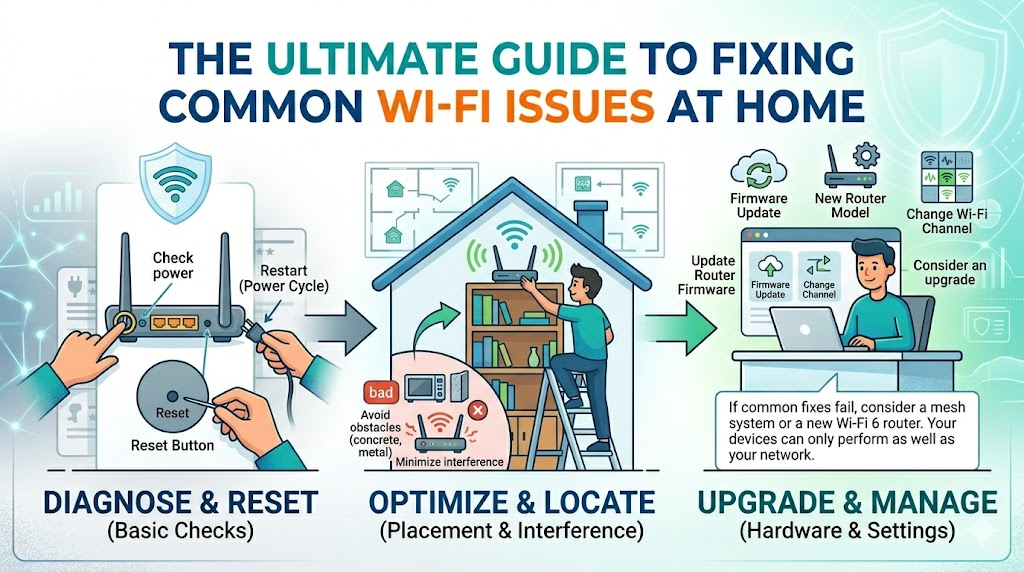
This Ultimate Guide equips you with proven fixes: from basic restarts and optimal placement to channel optimization, firmware updates, security tweaks, and hardware upgrades like mesh networks.
Discover how to reclaim lightning-fast, reliable home Wi-Fi today.
Understanding Common Wi-Fi Symptoms
Identify your issue: slow Wi-Fi (under 25Mbps) suggests congestion; Wi-Fi dead zones indicate poor coverage; buffering during Netflix points to bandwidth limits. These common Wi-Fi problems help pinpoint the root cause. Matching symptoms to solutions speeds up Wi-Fi troubleshooting.
Run a quick check to diagnose your home Wi-Fi troubles. Note patterns like time of day or specific devices. This guides you to the right fixes in later sections.
Experts recommend starting with basic tests before advanced steps. Observe when issues occur, such as evenings for network congestion. Use these symptoms as your roadmap.
- Slow speeds under 20Mbps: Does a speed test show low results? This often ties to Wi-Fi speed limits or congestion. See the slow Wi-Fi section for optimization tips like channel interference checks.
- Devices disconnect randomly: Do phones or laptops drop Wi-Fi connection often? Interference sources like microwaves may cause this. Check the dropped connections troubleshooting area.
- No signal in one room: Is there a Wi-Fi dead zone in certain spots? Poor router placement or thick walls create weak spots. Explore Wi-Fi extender or mesh network solutions next.
- Laggy gaming with high ping over 100ms: Does online gaming stutter? Run a ping test to confirm latency. The gaming lag part covers QoS settings and 5GHz band use.
- Smart devices fail to connect: Are Alexa or smart bulbs offline? This points to 2.4GHz band issues or device compatibility. Find fixes in the IoT connectivity guide.
- All devices slow at once: Do multiple gadgets crawl together? Suspect an ISP problem or router overload. Head to the ISP outage and reboot router sections.
Each symptom links to targeted fixes like firmware update or router reset. Test one change at a time for clear results. This approach restores Wi-Fi stability efficiently.
Tools You’ll Need for Diagnosis
Essential free tools: WiFi Analyzer (Android), NetSpot (Windows/Mac), Speedtest.net, Fing app, Command Prompt ping tests. These apps and utilities help pinpoint Wi-Fi issues like channel interference and weak signals. Start with them to diagnose home Wi-Fi problems before making changes.
WiFi Analyzer scans for crowded channels on your Android device. It shows signal strength and optimal channels to fix slow Wi-Fi. Download it from the Google Play Store and run a scan near your router.
NetSpot creates heatmaps of Wi-Fi coverage on Windows or Mac. Walk around your home to map dead zones and adjust router placement. Get the free version from the official website, or upgrade for advanced features up to $49.
Use Speedtest.net on any browser or app to test Wi-Fi speed and ping. It reveals ISP issues or network congestion affecting streaming. Access it directly in your web browser for quick checks.
Fing identifies all devices on your network via iOS or Android. Download from app stores to spot bandwidth hogs. For ping tests, open Command Prompt on Windows, type ping google.com, and check for packet loss.
| Tool | Platform | Price | Key Features | Best For |
| WiFi Analyzer | Android | Free | Channel scanner, signal strength | Channel interference |
| NetSpot | Win/Mac | Free-$49 | Heatmaps, site surveys | Coverage mapping |
| Speedtest.net | All | Free | Speed/ping tests | ISP issues |
| Fing | iOS/Android | Free | Device scanner, network info | Connected devices |
| WirelessMetrics | Android | Free | Signal strength metrics | Weak Wi-Fi spots |
After downloading, run each tool in sequence for full Wi-Fi troubleshooting. For example, use WiFi Analyzer first to check neighbor Wi-Fi overlap, then NetSpot for visuals. This approach saves time when fixing common Wi-Fi problems like laggy connections.
Basic Connectivity Checks
Don’t skip basic connectivity checks for your home Wi-Fi. These simple steps often resolve common Wi-Fi problems before moving to advanced troubleshooting. They save time and avoid costly router replacements.
Power cycle sequence: 1) Unplug modem (30 seconds), 2) Unplug router (30 seconds), 3) Plug modem first (wait 2 minutes for sync), 4) Plug router (wait 3 minutes). Most Wi-Fi issues clear up with this quick reboot of your Wi-Fi router and modem. Test your connection right after.
Check cables next for loose connections causing Wi-Fi not working. Verify device settings to fix IP address errors. These troubleshooting steps restore Wi-Fi stability fast.
Experts recommend starting here for fixing Wi-Fi at home. Handle dropped connections or slow speeds with these checks. Move to software fixes only if basics fail.
Restarting Your Router and Modem
Restarting your router and modem fixes many Wi-Fi connection issues. Follow this reboot router process to clear temporary glitches. It refreshes the network without data loss.
Here is the exact 7-step power cycle:
- Identify modem vs router: Modem connects to ISP, router broadcasts Wi-Fi.
- Unplug modem first, wait 30 seconds.
- Unplug router, wait another 30 seconds.
- Plug in modem, wait 2 minutes for lights to stabilize and sync.
- Plug in router, wait 3 minutes for full boot.
- Check lights: Power on, then internet LED solid green.
- Test one device first, like your phone, before others.
For TP-Link routers, press the reset button on the back. Netgear models have it near the power port. Use factory reset only if reboot fails three times or after firmware changes.
This router reset handles network congestion and laggy Wi-Fi. It beats calling your ISP for reboot modem support. Repeat daily for optimal Wi-Fi performance.
Verifying Cable Connections
Check 4 critical cables: ISP coax (tight, no bends), modem power (120V outlet), ethernet modem-to-router (Cat5e minimum), router power (use original adapter). Loose cables cause weak Wi-Fi and packet loss. Inspect visually now.
Use this checklist for ethernet cable and coax:
- Coax connector torque: Finger-tight, no overtightening.
- Ethernet LEDs: Blinking on both modem and router ends.
- Power adapter specs: Match 12V/2A label exactly.
- Avoid splitters, they weaken signals.
Common mistake is loose coax mimicking slow Wi-Fi. Replace damaged Cat6 cable cheaply instead of service calls. Test by reseating all connections.
Secure cables improve signal strength and fix buffering issues. Place modem and router away from power strips. This step resolves many Wi-Fi dead zones at home.
Checking Device Wi-Fi Settings
Windows: netsh wlan show profiles; Mac: Option+Click Wi-Fi icon; iPhone: Settings > Wi-Fi > tap network (shows IP). Verify your IP address in 192.168.x.x range. Wrong settings block Wi-Fi network access.
Platform-specific fixes for Wi-Fi troubleshooting:
- Windows: Run ipconfig /release then /renew in Command Prompt.
- Mac: Terminal command airport -I checks signal.
- Android: Dial *#*#4636#*#* for Wi-Fi info menu.
- iOS: Reset network settings in Settings > General.
Fallback to DNS 8.8.8.8 if errors persist. Fix self-assigned IP by forgetting the network and rejoining. Update DNS settings for smoother browsing.
These checks resolve device compatibility problems with smart home devices. Test ping test after changes. Reboot device if Wi-Fi speed lags.
Optimizing Router Placement
Poor placement causes significant signal loss through walls. Central, elevated positioning boosts Wi-Fi coverage in most homes. Router location plays a key role in fixing common Wi-Fi issues like weak signals and dead zones.
Place your Wi-Fi router centrally on the upstairs level for better reach. Keep it away from corners, floors, and closets to avoid blocking the Wi-Fi signal. This simple step often resolves slow Wi-Fi and dropped connections.
Test different spots using a Wi-Fi analyzer app to map coverage. Elevate the router to eye level on a shelf for optimal spread. Adjust antennas vertically for homes with multiple floors.
Common mistakes include hiding routers in cabinets, which blocks signals completely. Open-air placement reduces interference sources like microwaves. Regular checks ensure stable Wi-Fi performance across your home network.
Ideal Router Locations
Best spot: Second floor center, 5-6ft high on shelf (not floor), 3ft from walls. This central location maximizes Wi-Fi range in multi-story homes. It minimizes Wi-Fi dead zones for devices like smart TVs and laptops.
For a 3-bedroom ranch, position in the hallway center at eye level. In a 2-story colonial, use the second floor central spot elevated on a shelf. Apartments benefit from the highest point, like a tall bookshelf away from exterior walls.
Follow these five key rules for optimal placement:
- Choose central horizontally and vertically in your floor plan.
- Mount at eye level, about 5-6 feet high.
- Keep in open air, free from enclosures.
- Test three locations with a Wi-Fi analyzer app.
- Mark a coverage map to identify weak spots.
These steps help troubleshoot weak Wi-Fi effectively. Revisit placement after adding devices like security cameras. Consistent testing ensures even coverage for streaming and gaming.
Signal Strength Testing Methods
Target RSSI values range from excellent to weak based on distance. Test five locations per floor to spot Wi-Fi dead zones. This identifies areas needing a Wi-Fi extender or repositioning.
Use these three practical methods for signal strength testing:
- WiFi Analyzer app for heatmap walks around your home.
- Run speed tests three times per location.
- Ping a reliable site continuously to check latency.
Mark dead zones below weak thresholds and re-test after changes. Walk each floor with your phone to log results. This reveals issues like channel interference or thick walls.
| Location | RSSI | Speed | Verdict |
| Living Room | -45 dBm | 150 Mbps | Excellent |
| Upstairs Bedroom | -65 dBm | 80 Mbps | Good |
| Basement Corner | -80 dBm | 10 Mbps | Dead Zone |
Log results in a simple table like this for easy review. Adjust router placement based on verdicts. Regular tests maintain Wi-Fi stability amid network changes.
Wi-Fi Channel and Frequency Optimization
Crowded Wi-Fi channels slow your home network by making devices compete for airtime. Tools like WiFi Analyzer show which channels your neighbors use most. Optimization steps can double your Wi-Fi speed right away without buying new hardware.
Channel congestion causes major speed loss. Use non-overlapping channels like 1, 6, 11 on 2.4GHz or 36, 40, 44 on 5GHz to avoid interference. This simple change fixes slow Wi-Fi from neighbor overlap.
Start by scanning your area with a free analyzer app. Pick the quietest channel and set it manually on your Wi-Fi router. Test speeds before and after to see real gains in your daily connections.
Factors like microwave interference or thick walls add to channel issues. Combine channel picks with proper router placement in a central spot. This tackles common Wi-Fi problems like buffering and lag.
Selecting the Best Wi-Fi Channel
2.4GHz best: Channels 1,6,11 (20MHz width). 5GHz best: 36,40,44 or 149,153,157 (80MHz width). These non-overlapping channels prevent signal bleed from neighbors.
Follow these steps for channel selection. First, run WiFi Analyzer for five minutes to scan nearby networks. Note the strongest neighbor channels to avoid them.
Next, choose the least-used option from 1, 6, 11 on 2.4GHz. Set your router to manual channel, not auto. Channel width matters too, 20MHz boosts range while 80MHz favors speed.
Test Wi-Fi speed before and after the change. For example, switch from a busy channel to clear channel 1 and watch downloads speed up. Repeat in different rooms to cover your whole home.
2.4GHz vs 5GHz Band Choices
2.4GHz offers 150ft range, 5GHz just 50ft range, yet 5GHz runs 3x faster. Use band steering on your router for auto device assignment. This balances load across bands for better Wi-Fi stability.
Pick bands based on your needs. 2.4GHz suits far rooms and IoT devices, while 5GHz excels for streaming on laptops. Manual split creates separate networks like Network_2.4 and Network_5.
| Band | Range | Speed | Walls | Devices | Use Case |
| 2.4GHz | 150ft | 100Mbps | Penetrates 3 walls | IoT, printers | Coverage |
| 5GHz | 50ft | 500+Mbps | 1 wall max | Laptops, phones | Speed |
To split bands, log into your router settings. Rename SSIDs for each band and disable smart connect. Connect devices manually, like smart bulbs to 2.4GHz and TVs to 5GHz, for optimal performance.
Using Wi-Fi Analyzer Tools
Android: WiFi Analyzer (4.3 stars, 5M+ downloads). Windows: Acrylic Wi-Fi Home (free). iOS: Network Analyzer. These apps reveal channel interference in seconds.
Install the app on your phone or PC. Open the Channel Graph tab to see signal overlaps. Sort networks by signal strength to spot the busiest channels.
Do a walk test through every room for a full picture. Export a heatmap to map Wi-Fi dead zones. This helps place your router or add a Wi-Fi extender.
Before optimization, a crowded channel 6 might give 25Mbps speeds. Switch to clear channel 1 and hit 95Mbps. Retest after changes to confirm fixes for slow Wi-Fi and dropped connections.
Firmware and Software Updates
Manufacturers release firmware updates monthly to address common Wi-Fi problems like slow speeds and dropped connections. These updates fix bugs in Wi-Fi routers and improve stability for home networks. Regular checks keep your setup current and reduce troubleshooting needs.
For example, a Netgear firmware v1.0.2.34 to v1.0.2.45 update resolved a channel 11 bug causing interference. Device drivers also need updates through tools like Windows Device Manager. Staying updated prevents many Wi-Fi issues from arising.
Outdated firmware often leads to speed problems in home Wi-Fi setups. Schedule monthly checks to catch these issues early. Combine firmware and driver updates for better Wi-Fi performance.
Experts recommend backing up settings before any update to avoid losing custom configurations like QoS settings or guest networks. After updating, run a speed test to confirm improvements in signal strength and bandwidth.
Updating Router Firmware
Netgear routers like Orbi or R7000 use routerlogin.net, then go to ADVANCED, Administration, and Update. TP-Link Archer models access tplinkwifi.net, then Advanced and System Tools. Always download firmware from the manufacturer site only to avoid risks.
Backup your settings first to preserve Wi-Fi passwords and channel selections. Check release notes for fixes related to Wi-Fi 6, such as better MU-MIMO support or beamforming improvements. This step helps fix weak Wi-Fi and dead zones.
For Asus RT-AX series, log into the router interface, navigate to Administration, and select Firmware Upgrade. Linksys models require accessing the web interface, going to Connectivity, and choosing Manual Update. Verify the update via the status page afterward.
- Netgear: Check for auto-update options in the app.
- TP-Link: Use the Tether app for notifications.
- Asus: Enable AiMesh for mesh network firmware sync.
- Linksys: Review logs post-update for errors.
These steps optimize your Wi-Fi network and resolve issues like channel interference or network congestion.
Device Driver Updates
In Windows, open Device Manager, expand Network adapters, right-click Realtek RTL8821 or similar, and select Update driver then Search automatically. This fixes common Wi-Fi connection drops on laptops. Restart after updating for changes to take effect.
On Mac, go to System Information under Software, then check Network for driver versions. Update via manufacturer sites for Intel Wi-Fi cards. Android devices require Settings, About phone, and tapping Build number multiple times to enable developer options, then check Wi-Fi details.
Common updates for Intel or Realtek drivers improve Wi-Fi speed and reduce lag. For instance, a Killer Wi-Fi driver update eliminated ping spikes during gaming. Run a benchmark before and after using tools like ping tests.
- Windows: Use optional updates in Settings for drivers.
- Mac: Third-party apps like DriverEasy can scan.
- Android: Factory image flashes for deep fixes.
Regular driver checks enhance device compatibility with dual-band routers and prevent buffering issues in streaming or video calls.
Security and Network Configuration
Default passwords get hacked in 2 minutes, so change them immediately to prevent neighbor bandwidth theft. Many routers still use factory settings like admin for both username and password. This leaves your home Wi-Fi open to intruders who can slow your connection or steal data.
Switch to WPA3 encryption for stronger protection against common attacks compared to older standards. Limit your network to trusted devices only to reduce congestion and boost Wi-Fi speed. Proper setup fixes many common Wi-Fi problems like slow speeds and unauthorized access.
Start by accessing your router admin page, often at 192.168.1.1 or 192.168.0.1. Update firmware first for the latest security patches. These steps secure your Wi-Fi network and improve overall stability.
Use a guest network for visitors to keep your main devices safe. Regularly check connected devices to spot unknowns. This configuration tackles Wi-Fi troubleshooting issues rooted in poor security.
Changing Default Router Password
Access 192.168.1.1, go to Administration, then Set Password: use 16+ characters with uppercase, numbers, symbols like H0meWiFi2024!. Default credentials make your Wi-Fi router easy prey for hackers. Change them now to fix security risks in your home network.
Follow this checklist with a password manager:
- Find login IP by brand, such as 192.168.1.1 for most.
- Check defaults like Netgear admin/password.
- Generate a secure password.
- Update all connected devices.
- Enable a password hint for recovery.
Test login after router reboot to confirm changes. This prevents weak Wi-Fi from bandwidth thieves. Reconnecting devices might take a few minutes but secures your setup.
For brands like TP-Link or Asus, look under System Tools. Save changes and reboot. Strong passwords resolve many dDropped connections tied to hacked networks.
Enabling WPA3 Security
WPA3 blocks KRACK attacks, enable if all devices compatible like iPhone 7+ or Windows 10 version 1903 and later. Older protocols leave gaps in secure Wi-Fi. Upgrade to stop most wireless exploits during Wi-Fi troubleshooting.
Steps to enable WPA3 encryption:
- Go to Wireless Settings, select Security Mode as WPA3-Personal.
- Use fallback WPA2/WPA3 mixed mode for compatibility.
- Verify handshake capture with tools like Wireshark.
IoT devices often need WPA2, so check a compatibility chart first. Expect minor speed impact from overhead. This fixes slow Wi-Fi caused by insecure modes.
After changes, rescan networks on phones and laptops. Band steering helps direct devices to the right 5GHz band. WPA3 strengthens your Wi-Fi signal against interference and threats.
Managing Connected Devices
Router status page shows intruders, block via MAC filter like Smartphone A4:B2:C1. Too many devices cause network congestion and lag. Monitor to fix Wi-Fi not working for legit users.
Manage with these steps:
- View connected list at 192.168.1.1.
- Scan with Fing app for details.
- Block unknown MAC addresses.
- Set up guest network on 2.4GHz only.
- Limit to 15-20 devices total.
Example: Block a neighbor’s Ring camera to gain speed. This cuts bandwidth hogs and stabilizes streaming. Use QoS settings for priority on gaming or video calls.
Enable device limits in advanced settings. Reboot modem and router after blocks. Regular checks prevent Wi-Fi dead zones from overload.
Advanced Speed and Performance Fixes
QoS prevents one Zoom call from killing gaming. It prioritizes traffic types for better bandwidth use. Multiple 4K streams can saturate slower connections like 100Mbps plans.
QoS settings allocate bandwidth intelligently across devices. This fixes network congestion during peak hours. Everyone gets fair access to Wi-Fi speed.
Disable bloat features that eat router CPU. Unused options like cloud management slow down your Wi-Fi router. Free up resources for smoother Wi-Fi performance.
Test changes with tools like speed tests or ping checks. Place your router centrally for stronger signals. Combine these with firmware updates for optimal results.
QoS Settings Configuration
Netgear: QoS Priority: Gaming/Video/VoIP; TP-Link: Adaptive QoS Gaming preset. Set up rules to favor critical apps. This tackles slow Wi-Fi from competing devices.
For Netgear, use Dynamic or Static rules in the interface. Assign high priority to gaming consoles or video calls. TP-Link offers device priority lists for easy setup.
Asus Adaptive QoS lets you set percentages, like more for gaming. Test with iPerf3 to measure shared speeds. Before changes, contention drops effective throughput; after, it improves noticeably.
- Access router admin page via 192.168.1.1 or similar IP.
- Enable QoS and select traffic types like streaming or VoIP.
- Save and reboot router for traffic prioritization to take effect.
- Monitor with network map to confirm balanced loads.
Disabling Unused Features
Disable UPnP (security risk), guest network (unused), USB sharing. These free up router CPU for better Wi-Fi stability. Turn off features you do not need.
Next, disable SIP ALG to prevent VoIP drops. Turn off WPS due to vulnerabilities. Skip cloud management if unused.
Check router settings for these toggles. After disabling, run speed tests to see gains. CPU usage drops, improving overall Wi-Fi speed.
- Log into router admin panel.
- Find Advanced or Security section.
- Toggle off UPnP settings, SIP ALG, WPS, and extras.
- Reboot and test connected devices for smoother performance.
Hardware Upgrades and Limitations
Upgrade when speeds drop below 50% of your ISP plan or coverage falls short of 70% of your home. Routers over five years old often cap at 100Mbps maximum, struggling with modern demands. This limits fixing common Wi-Fi problems like slow speeds and dead zones.
Mesh networks eliminate dead zones by using multiple nodes for seamless coverage. They outperform single routers in larger homes. Powerline adapters beat Wi-Fi extenders through walls, delivering stable signals via electrical wiring.
Assess your Wi-Fi signal strength with a speed test from multiple rooms. If weak Wi-Fi persists despite tweaks like router reset or channel changes, hardware limits are likely the issue. Upgrading addresses network congestion and device compatibility for better home Wi-Fi.
Experts recommend checking firmware updates first, but old hardware rarely supports Wi-Fi 6 features like MU-MIMO. Powerline kits shine for Wi-Fi dead zones blocked by thick walls. Mesh systems optimize bandwidth allocation across 2.4GHz and 5GHz bands.
When to Upgrade Your Router
Upgrade if: 1) Wi-Fi 5 or older, 2) speeds under 400Mbps, 3) more than 20 devices, 4) home over 3000sqft. Older routers cause slow Wi-Fi and laggy connections during streaming or gaming. They lack support for Wi-Fi 6 efficiency in crowded networks.
Use this decision matrix to guide your choice:
| Current Speed | Devices | Home Size | Recommendation |
| Wi-Fi 5, 50Mbps | 15 devices | 1500sqft | Keep current |
| Wi-Fi 5, 25Mbps | 30 devices | 3000sqft | TP-Link Archer AX55 |
Wi-Fi 6 routers like the TP-Link Archer AX55 handle high device loads with beamforming. Place your new router in a central location, elevated away from interference. Test Wi-Fi speed post-upgrade to confirm improvements in signal strength.
For Wi-Fi troubleshooting, run a ping test before and after. If buffering issues or dropped connections persist, consider tri-band routers. They separate traffic for better Wi-Fi stability with smart home devices like cameras and thermostats.
Mesh Network Solutions
Comparison: Eero 6 ($229/3-pack) vs Orbi RBK852 ($600). Eero offers easier app setup, while Orbi delivers faster tri-band speeds. Both fix Wi-Fi dead zones in large homes better than single routers.
| System | Price | Coverage | Key Features |
| Eero 6 | $229 | 4500sqft | App setup, Alexa |
| Google Wifi | $199 | 3000sqft | Simple, Basic |
| Orbi RBK85 | $600 | 6000sqft | Tri-band, Wired backhaul |
| TP-Link Deco | $180 | 4000sqft | Budget, Matter |
Setup takes about 15 minutes with mobile apps guiding node placement. Position satellites in dead zones for optimal mesh network backhaul. This resolves weak Wi-Fi from thick walls or multi-floor layouts.
Mesh systems use band steering to push devices to 5GHz for speed. They support guest networks and QoS for prioritizing video calls. Ideal for homes with IoT devices facing connection drops.
Powerline Adapters as Alternatives
TP-Link AV2000 Kit ($90): 2000Mbps over electrical wiring, beats Wi-Fi extenders 3:1. Use them when walls block Wi-Fi signals, like to a second floor. They provide stable ethernet-like speeds without new wiring.
- Ensure devices on the same electrical circuit.
- Choose AV1000+ for gigabit potential.
- Sync with pairing button.
- Avoid surge protectors; plug directly into outlets.
In tests, front room Wi-Fi at 35Mbps jumped to 620Mbps via powerline. Perfect for gaming lag or streaming problems. Pair with a Wi-Fi access point for wireless coverage.
Powerline adapters dodge microwave interference and neighbor Wi-Fi overlap. Check signal strength with built-in LEDs. They enhance home Wi-Fi for printers and smart devices in remote spots.
Frequently Asked Questions
What is ‘The Ultimate Guide to Fixing Common Wi-Fi Issues at Home’ all about?
The Ultimate Guide to Fixing Common Wi-Fi Issues at Home is a comprehensive resource that provides step-by-step solutions to the most frequent Wi-Fi problems homeowners face, such as slow speeds, dropped connections, and weak signals, helping you troubleshoot and resolve them without needing professional help.
How can I fix slow Wi-Fi speeds according to ‘The Ultimate Guide to Fixing Common Wi-Fi Issues at Home’?
In The Ultimate Guide to Fixing Common Wi-Fi Issues at Home, slow speeds are addressed by recommending steps like restarting your router, checking for bandwidth-hogging devices, updating firmware, and optimizing your router’s channel settings to reduce interference from neighboring networks.
Why does my Wi-Fi keep dropping, and what’s the solution from ‘The Ultimate Guide to Fixing Common Wi-Fi Issues at Home’?
The Ultimate Guide to Fixing Common Wi-Fi Issues at Home explains that dropped connections often result from signal interference, outdated hardware, or overheating routers. Solutions include repositioning the router centrally, using a wired connection for stability, and ensuring proper ventilation around the device.
How do I extend my Wi-Fi range using tips from ‘The Ultimate Guide to Fixing Common Wi-Fi Issues at Home’?
The Ultimate Guide to Fixing Common Wi-Fi Issues at Home suggests extending range by placing your router in an open, elevated spot away from walls and electronics, using Wi-Fi extenders or mesh systems, and upgrading to a dual-band router that supports both 2.4GHz and 5GHz frequencies.
What should I do if my Wi-Fi password isn’t working, as per ‘The Ultimate Guide to Fixing Common Wi-Fi Issues at Home’?
According to The Ultimate Guide to Fixing Common Wi-Fi Issues at Home, if your password fails, reset it via the router’s admin panel (usually accessed at 192.168.1.1), ensure you’re entering it correctly (case-sensitive), or perform a factory reset and set a new strong password combining letters, numbers, and symbols.
Can ‘The Ultimate Guide to Fixing Common Wi-Fi Issues at Home’ help with Wi-Fi not reaching certain rooms?
Yes, The Ultimate Guide to Fixing Common Wi-Fi Issues at Home tackles dead zones by advising on router placement, adding access points or powerline adapters, conducting a Wi-Fi site survey with apps to identify weak spots, and minimizing obstructions like thick walls or metal objects.