
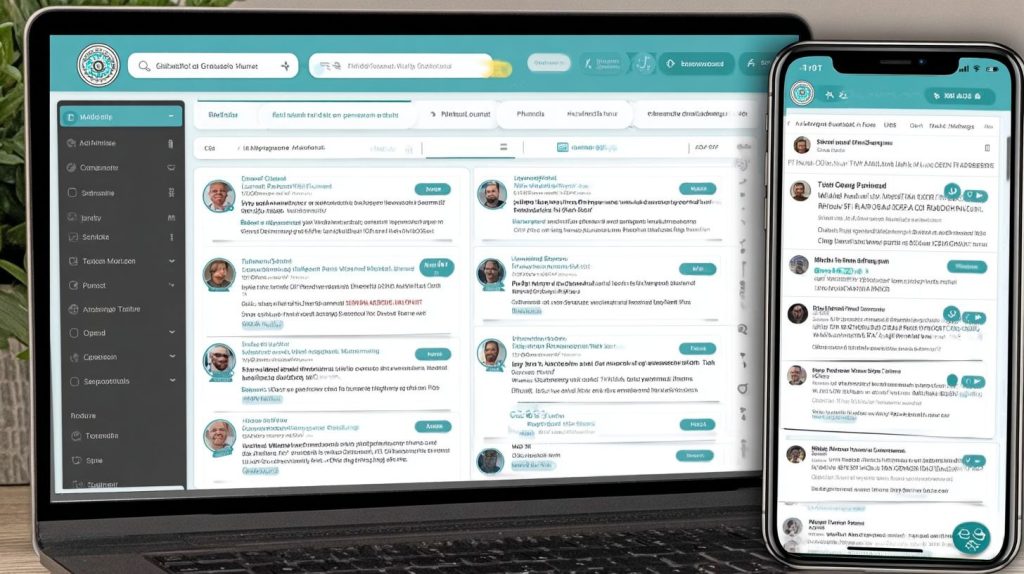
Tired of scattered spreadsheets and missed follow-ups ruining client relationships? SaaS platforms now bundle everything from contact tracking to automated reminders into one workspace. This guide breaks down how to pick the right tool, set it up without headaches, and connect it to your CRM or accounting software. You’ll also learn which metrics actually reveal client health and how to train your team so adoption sticks.
Introduction to SaaS Client Management
One dashboard can hold everything on 50-200 clients at once. Contact history, billing details, and project notes all live in the same place instead of scattered across inboxes and old spreadsheets. When someone asks a quick question, you’re not hunting through threads anymore.
Retrieval time drops from fifteen minutes down to thirty seconds per lookup. That difference starts to matter once you’re juggling dozens of accounts at once.
HubSpot’s 2023 State of CRM report found 77% of agencies using these platforms report better retention. Follow-ups stop slipping through the cracks. Renewals get handled before they turn into awkward conversations. Most teams see the difference within the first month of switching over.
Three things tend to improve right away. A single client record replaces the old mix of emails and docs. Billing runs on schedule without someone manually firing off invoices each month. Real-time dashboards show response times, project completion rates, and revenue per account without extra spreadsheets.
Benefits of SaaS Tools
Agencies that move to these tools usually see hours come back into their week and fewer clients walking out the door.
One marketing shop cut client management from twenty-five hours down to eight per week after connecting monday.com with Stripe. Retention climbed from 72% to 91%. Their team stopped spending half the week on admin and started charging for actual work again.
Specific tasks shrink too. Logging client details falls from eight hours to one. Building invoices shrinks from six hours to thirty minutes. Running monthly reports takes an hour instead of five. At $75 an hour, that’s roughly $4,200 saved each month. Late payments also dropped by half once reminders went out automatically and on time.
Key Features Overview
Most solid platforms come with eight to twelve core pieces. The pieces that matter most are the ones that remove friction you already feel every week.
Pipeline boards let you see where every deal sits. HubSpot Deals and Pipedrive put stage, size, and next action on one screen. Client portals give the customer their own view of contracts, payments, and project status without pinging you for updates. Clientjoy and SuiteDash both start at $29 a month for basic portal access.
New clients can walk through setup steps using templates from Process.st. Harvest and Toggl capture billable hours automatically. HelloSign and DocuSign handle signatures without the back-and-forth of email attachments. Revenue trends show up in ChartMogul or Baremetrics without manual exports. G2 Crowd data shows these six areas rank highest among agencies, and they each cut into the same weekly time sink.
Choosing the Right SaaS Platform
I learned the hard way that picking a platform without checking team size, budget, and what you’re already using will bite you later. Two agencies I know switched twice in twelve months. The time and migration headaches cost way more than anyone expected.
Here are five tools that agencies and freelancers actually rely on. Each one has its own strengths depending on what matters to you.
| Platform | Price Range | Team Size | Integrations | Mobile Rating |
| HubSpot | $20-120/user | 5-50+ | 1,000+ | 4.7/5 |
| Pipedrive | $29-99/user | 1-20 | 400+ | 4.5/5 |
| Freshsales | Free-$99 | 1-30 | 200+ | 4.6/5 |
| Zoho CRM | $14-52/user | 3-100+ | 500+ | 4.4/5 |
| monday.com | $8-16/user | 2-100+ | 200+ | 4.8/5 |
HubSpot works if your team is growing and you want marketing features built right in. Pipedrive keeps things simple and works best when sales is the main focus. Freshsales has a free tier, which makes it easy for freelancers to test. Zoho CRM gives you real customization if your processes are complicated. monday.com handles project tracking and client work with the same ease.
Evaluating Business Needs
Start with your actual headaches. Which client tasks keep slowing you down? Match those exact problems to features instead of getting pulled into bells and whistles you’ll never touch.
Before you even open a comparison chart, run through these eight questions. Your answers will cut the options fast.
- How many clients do you handle each month: under 25, 25 to 100, or over 100?
- Do you work on retainers, one-off projects, or hourly billing?
- How many people need access right now, and will that number grow?
- Which tools are you already paying for that could consolidate?
- Do you need strong mobile access for client meetings on the go?
- Are there industry rules around data handling that you must follow?
- What is your realistic monthly budget ceiling including add-ons?
- Which integrations are non-negotiable for your current workflow?
Give each answer a score from one to five. Put the most weight on things you can’t work around like compliance or must-have integrations. That gives you a real ranking, not just a gut pick.
Comparing Pricing Models
Prices range from free tiers to well over $200 per user per month, with add-ons running $10-30 each. The headline price rarely shows the full picture. API calls, storage limits, and support tiers all add up quietly.
Most products fall into one of four models. Per-user pricing charges by seats. Flat fees stay the same no matter how many people join. Usage-based plans grow with activity. Tiered plans unlock more as you climb levels.
Let’s say you have five users. Run the numbers for three years on each option you’re eyeing. Throw in API calls at $0.10-$0.50 each, storage overages of $5-$20 per extra gigabyte, and premium support at $50-$200 monthly if you need quick help. The “cheapest” choice on paper often ends up costing more once you add the real expenses.
Security and Compliance Factors
Enterprise tools should carry SOC 2 Type II certification and meet GDPR Article 32 rules with 256-bit encryption. Plenty of agencies skip checking this until a client asks for proof. Then they scramble.
Six things are worth confirming before you sign. Each one is easy to verify.
- SOC 2 certification, request the latest audit report directly
- GDPR compliance, review the privacy policy and confirm EU data residency options
- SSO or SAML support, test integration with tools like Okta or Azure AD
- Role-based access with at least five distinct permission levels
- Data retention controls offering 90 to 365 day deletion windows
- Audit logging that keeps records for a minimum of 90 days
Capterra security ratings give a quick read on how things hold up in practice. HubSpot scores 4.8, Pipedrive 4.7, Freshsales 4.6, Zoho CRM 4.5, and monday.com 4.7. Those numbers come from actual user reports. Don’t stop there though. Ask for the real audit documents before you decide.
Setting Up Your Client Management System
Expect the whole setup to take anywhere from 4 to 12 hours. It really depends on how much data you’re moving and whether your tools already play nice together. Most teams clear the simple stuff quicker than they planned, but nothing slows you down faster than messy records or connectors that refuse to talk.
Spread the work across ten days instead of trying to cram it into one long weekend. Six clear phases keep each day focused and stop the whole job from feeling like one giant headache. Start on day one with nothing more than account creation and domain verification, then move into field setup and pipeline building over the next couple of days.
Data work lands on days five through seven. You’ll spend that time pulling everything in and cleaning up the duplicates. Once the records look decent, connect whatever external tools you need and run your tests. Go live lands around day ten, provided the checks all pass.
The usual trouble spots hit during the import itself and later when the connectors stop syncing right. Give every phase a little extra time. Load small test batches first instead of the full dump, and keep your support contacts saved so you can reach them fast if something breaks.
Initial Configuration Steps
You’ll knock out 12-15 settings in the first hour if you focus on the right ones. Pipeline structure and permission levels come first because those choices shape everything downstream.
Begin with six to eight deal stages that actually match how your team works. Set up four user roles next: Admin, Manager, Sales Rep, and Viewer. Connecting email to Gmail or Outlook takes about five minutes once you grant permission.
After that, create 15 to 25 custom fields and pick how you want notifications to arrive. A basic 3-5 point lead score keeps the hottest leads visible without turning the whole system into a math problem.
Most approval workflows need two or three steps. Turn on two-factor authentication immediately for security. Each of these tasks takes less than ten minutes once you find the right menu, so handle them before you open the data files.
Importing Existing Data
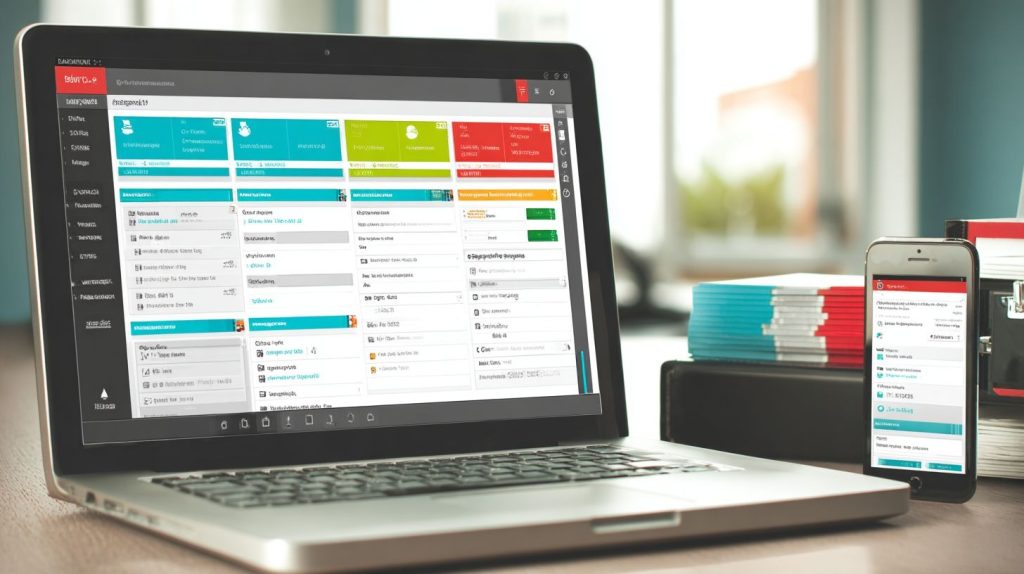
A CSV import moves 500-5,000 records in roughly 10 to 45 minutes if the file is clean and the rules for duplicates are already set. The real difference between an easy upload and a mess comes from how you prepare the spreadsheet ahead of time.
Make Email, Company, Owner, and Stage required columns. Phone, Website, Notes, and Tags can wait. Use YYYY-MM-DD for every date and the full +1-XXX-XXX-XXXX format for phone numbers so the system doesn’t choke on them.
Check duplicates first by email, then by Company plus domain, and finally by phone number. That order catches most repeats before they land in your database. Run a quick test with fifty rows to catch format issues early.
Matching emails merge automatically. Fix any bad phone formats in the sheet before you upload. For missing required fields, either fill them with reasonable defaults or leave those contacts out until you can complete them.
User Access Controls
Set up a five-tier permission structure and keep billing details and contract terms in front of only two or three people. It’s simple enough to protect sensitive information without making daily work harder.
Admins get complete access plus the right to add users and handle payments. Managers see every client record and report but skip the billing section. Team Members view only their own clients, and Contractors stay in read-only mode.
Client Portal Users reach just their own records and can upload or download files. For an eight-person agency the breakdown usually looks like two Admins, two Managers, three Team Members, one Contractor, plus the client logins you need.
Check the roles every three months. Teams change, and permissions should change with them. Quick adjustments keep the whole client management system safe without slowing anyone down.
Core Client Management Features
Most teams touch three to five client records every day. Contact details, tasks, and message threads pile up fast, and the time drain gets worse when those three live in separate places.
The 2023 UserEvidence survey found contact profiles sit at the center, linking to 15-20 related records on average. Task tracking pulls in project timelines and three priority levels, while communication logs keep emails, calls, and meetings in one place. Those three pieces shine once the data moves freely between them.
Teams that link the systems spend less time hunting for the latest update. Open a contact record and the past tasks and recent messages sit right there. That single view cuts missed deadlines and forgotten follow-ups.
Real days rarely match the clean demos. Someone fires off an email, another logs a call, a task gets reassigned midweek. The better tools catch those handoffs so you aren’t stitching the story together at the end of the week.
Contact and Profile Management
Each contact profile holds 25-40 data points. Name, Email, Phone, Company, and Title get you started. Then you add Website, LinkedIn, Industry, Company Size, and whatever custom fields you need.
Custom fields track things like contract value, renewal date, health score, and the main contact. System fields grab last activity, owner, created date, and tags without extra work. Fill more fields now and segmentation becomes simple later.
You can sort by contract value into brackets-$10k-50k, $50k-100k, $100k+. Health score splits people into At Risk (0-40), Healthy (41-70), and Champion (71-100). Industry verticals add another filter when you want to run targeted outreach.
Those segments trigger different moves. At-risk accounts get a review task. Champions receive renewal reminders ahead of schedule. The profile turns into the single source of truth instead of scattered spreadsheets.
Task and Project Tracking
Task boards hold 50-200 active items at once, with Kanban, list, and timeline views that update live. Three project templates keep the structure consistent without forcing every client through identical steps.
Retainer Management sets 12 monthly tasks that repeat on their own. Onboarding Sequence runs 15 tasks across 30 days and stops. Campaign Delivery splits work into 8 tasks per deliverable with built-in checkpoints.
Automation rules remove small daily choices. Tasks assign by type. Due dates skip weekends. Status changes can ask for approval first, and anything overdue past 48 hours escalates to a manager.
Deadlines move around. Change one date and related tasks shift automatically. Your team stays aligned without daily stand-ups just to check status.
Communication Tools
The built-in tools capture three to five client interactions every day across email, chat, and video, and they log automatically. Fewer places mean less chance a message slips into someone’s personal inbox.
Four channels cover most needs. Email syncs both ways with Gmail and Outlook and includes templates. In-app chat stays open to the team and stays searchable. Zoom and Meet calls record straight to the client record. SMS stays for urgent alerts, usually two or three times a week.
Response targets keep things realistic. Aim for email replies inside four business hours. Chat messages get attention within 15 minutes. Video follow-ups wrap within 24 hours.
Threaded history means anyone can grab context and jump in. Clients stop having to repeat details because the last email landed in someone else’s inbox.
Automating Workflows
Automation rules handle 40-60% of routine client management tasks without manual intervention. Most account managers still spend hours each week chasing follow-ups that should run on their own. SaaS tools can take that load off your plate entirely.
Set up simple rules once. They fire whenever a condition gets met. No extra clicks needed after that.
Build an automation matrix for your team. Map each common trigger to the right action. This keeps everyone on the same page and cuts down on missed steps.
| Trigger | Action |
| New lead added | Send welcome email + assign to sales rep |
| Deal stage change to Proposal | Create 5 follow-up tasks + notify manager |
| Contract signed | Create onboarding project + send welcome kit |
| Invoice 7 days overdue | Send reminder + flag account |
| Client health score drops below 30 | Schedule check-in call + notify CSM |
| Renewal 60 days out | Create renewal opportunity |
| Task overdue 48 hours | Escalate to manager |
| New note added | Notify assigned team member |
Trigger-Based Automation
Trigger rules execute within 30-60 seconds of qualifying events across 15-25 configured automations per account. That speed matters when you’re juggling dozens of clients at once. You want the system to react faster than a person could type a note.
Most platforms let you pick from five trigger types. Data triggers fire when someone edits a field or creates a new record. Time triggers watch the calendar and kick off on specific dates or repeat on a set schedule.
Activity triggers watch client behavior. They run when an email gets opened, a link gets clicked, or a form gets submitted. Status triggers react to pipeline movement or task completion. External triggers pull in data through webhooks or API calls from other tools.
Conditional logic adds another layer. You might say IF health score is above 80 AND contract value exceeds fifty thousand dollars THEN assign to a senior client success person. This keeps high-value accounts with the right team members from day one.
Test every rule before you flip the switch. Run it against sample records first. Check the audit log after each test to confirm the actions matched what you expected. Then turn it on for real clients.
Recurring Tasks and Reminders
Recurring task templates automate 8-12 monthly touchpoints per client, reducing missed follow-ups by 85%. Without these templates, it’s easy to let quarterly reviews slip or forget a renewal check-in during a busy month. The platform keeps the rhythm steady.
Create six core templates that run automatically. Schedule a monthly check-in call for the 25th with a thirty minute block. Book quarterly business reviews for the last Friday of each quarter and reserve a two-hour slot. Set invoice generation for the first of every month with an automatic handoff to finance.
Build review steps for contracts at the sixty-day mark before renewal ends. Update client health scores every Sunday at nine in the morning. Send an NPS survey ninety days after onboarding completes. The dates stay consistent even when staff changes happen.
Layer in reminder escalation. Send the first nudge twenty-four hours before a task is due. Follow up two hours prior if nothing moves. Escalate to a manager with a final alert once the deadline hits and the item stays open. This keeps nothing buried for long.
Integrations and Ecosystem
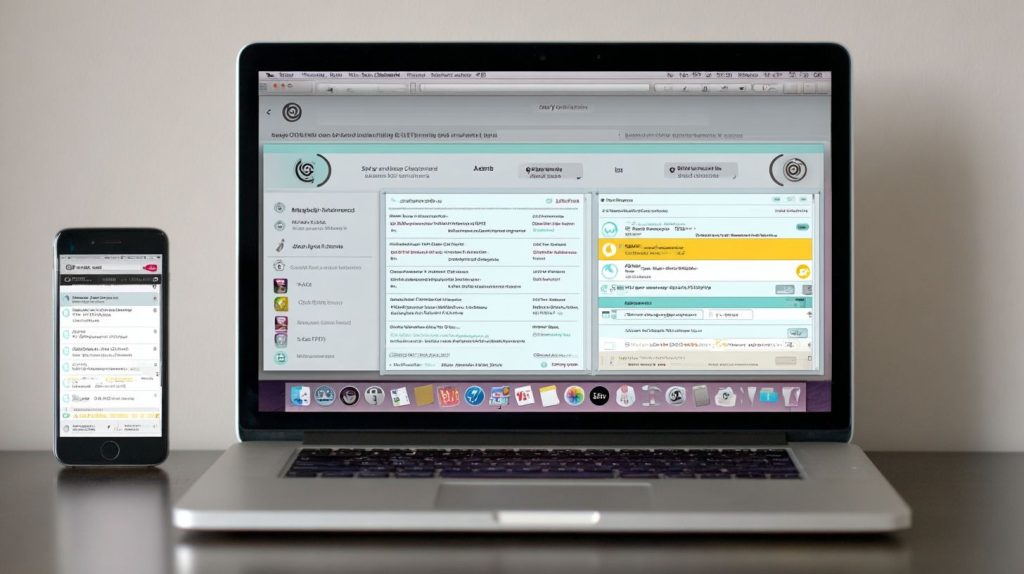
Most SaaS client stacks link to 8-12 tools. Some teams start with just email and billing and stay there. Others end up with a mess of connections that started as “nice to have” six months earlier.
A few tools show up in almost every setup. Email and calendar sit right at the center. So do accounting and e-signature apps. Project tools and time trackers usually land in the nice-to-have bucket.
Business intelligence platforms and custom databases live one layer deeper. They demand more technical comfort and a clear reason for the extra work. Native connections normally refresh every five to fifteen minutes and don’t cost extra.
Zapier runs on a fifteen-minute delay for free. After you hit seven hundred and fifty tasks it jumps to twenty dollars a month. Most teams decide between faster data and lower cost right around that point.
Connecting with CRM Tools
A good CRM sync keeps one clean customer record across sales and account management. Refresh cycles land between five and fifteen minutes. The HubSpot link stands out because it pushes contacts both ways without anyone exporting spreadsheets.
Custom fields like contract value and renewal date pass through cleanly. Revenue reports then pull real numbers without duplicate entries. Most teams let HubSpot own the lead stage and hand everything else off once the deal closes.
When conflicts appear, the newest change wins. Setup takes about fifteen minutes once you pick which fields move where. Start with name and email, then add company details and deal amount.
After that, map the stage and renewal date. Finish with contract value. Run one test record before you flip the switch for everything.
Linking Accounting Software
Accounting hooks automate invoice creation from contract data. Billing errors drop by 94 percent once the systems talk. QuickBooks Online costs thirty dollars a month and handles invoices, payments, and expenses. Xero starts at thirteen dollars and climbs to seventy based on volume, with solid bank feeds and multi-currency support.
FreshBooks sits between nineteen and sixty dollars and leans toward project invoices plus built-in time tracking. Data moves every fifteen minutes in both directions. Most teams push invoices out from the client platform and let payment status flow back in.
That means the client record shows paid or overdue without extra clicks. Stripe and PayPal sit one step deeper. They feed payment details straight into accounting so you skip manual bank entries. Currency or tax mismatches still pop up now and then.
Check the sync log first. Fix the mapping instead of retyping everything. The same trick works for expense imports that need category tags before they hit reports.
API and Third-Party Apps
REST APIs handle between five hundred and two thousand requests a day with a hundred calls per minute limit on standard plans. A Typeform webhook can spin up a new client record the second a form gets submitted. That wipes out the usual delay between lead capture and onboarding.
Custom scripts can grab project updates from Asana and drop them into the client dashboard. Slack pings triggered by deal changes keep everyone in the loop without constant dashboard checks. The auth method you pick affects how much upkeep you deal with later.
API keys are the quickest option, though rotating them every ninety days is smart. OAuth 2.0 adds a layer of security but requires scheduled token refreshes. Webhook signatures at least confirm the data actually came from the right place.
Five Zapier templates handle the usual handoffs: new contact to Slack, invoice paid to email receipt, deal stage change to task, form submission to client record, and renewal date to reminder. Start with the ones that match steps you’re still doing by hand.
Reporting and Analytics
Analytics dashboards track 15-25 KPIs updating every 15-60 minutes across client health, revenue, and team performance. Most teams glance at these numbers first thing in the morning.
The real payoff comes when you catch the small issues before they blow up into lost accounts. You know the story-spotting a drop in engagement only after the renewal notice already went out. Real-time reporting flips that script. Alerts hit you when something moves, not just those monthly summaries that arrive too late to matter.
Four categories keep the data useful. Client health scores flag accounts drifting toward the exit. Revenue metrics show money coming in and money walking out. Team performance tells you whether your people are drowning or managing their load. System usage shows what clients actually touch once they’re logged in.
Benchmarks give you a quick reality check. Healthy churn stays under five percent monthly. Most tickets should get a response inside four hours. Team utilization feels right somewhere between sixty-five and eighty percent-push past that and quality usually slips.
Client Performance Metrics
Client health scores pull together 5-7 weighted metrics into a 0-100 number that resets every night at midnight. The formula pulls from engagement, ticket volume, payment history, feature usage, and contract trends. Each factor gets different weight depending on what drives retention for your book of business.
Here’s how the math breaks down. Engagement counts for twenty-five percent. Support tickets make up twenty. Payment status adds another twenty. Feature usage takes fifteen percent. Contract value trends fill out the last twenty. Altogether you land at your daily score.
Scores fall into four buckets that actually mean something. Champions sit at eighty to one hundred and are ready for expansion talks. Healthy clients fall between sixty and seventy-nine, where regular check-ins do the job. At-risk accounts drop to forty through fifty-nine and need attention before they get worse. Anything below forty triggers escalation right away.
Weekly reviews turn these numbers into action. Pull your at-risk list every Monday morning. Work through the intervention steps tied to each tier. Note what actually moved the needle, then adjust before the next round.
Custom Dashboard Creation
Custom dashboards let you combine 8-12 widgets that pull live data from your integrations. You build the views that fit how different roles actually work-no single layout serves everyone who opens the tool.
Three templates cover most use cases. Executives get MRR trends, churn rates, top clients by revenue, and team utilization at a glance. Client success managers see their assigned accounts, upcoming renewals, open tasks, and recent activity. Finance tracks outstanding invoices, payment patterns, revenue by client tier, and forecast versus actual results.
Widget types follow the data. Line charts show twelve-month MRR movement. Gauge charts display average health scores across the whole book. Tables list your top ten at-risk clients before Monday meetings. Funnel charts show where deals sit in the pipeline right now.
Build these once, then adjust as your process changes. The dashboards that stick around are the ones that grow with the questions your team keeps asking.
Best Practices and Optimization
Most teams let their setups drift. The fix isn’t some big overhaul, just steady monthly checks. I usually spot three to five things worth tweaking each time the numbers get looked at.
Start with automation rules. Open every trigger, run a test, then kill the ones that stopped mattering months ago. Keeps the whole client flow from choking on old if-then statements.
Next, user permissions. Roles shift, contracts end, people leave. One quick sweep stops the usual problems: forgotten access that turns into a breach later, or new hires given too many keys and wondering where everything lives.
Then check integration performance. API keys turn stale, syncs lag, fields stop mapping. Catch any of that early and you skip the scramble when billing data vanishes or an email campaign dies mid-send.
Team Training Strategies
New hires used to take three solid weeks before they stopped asking basic questions. Now the same people reach that point in five days, and retention sits at 85% because lessons got chopped into short, repeatable chunks instead of one long slog.
Day one stays simple: where client records live, how to drop in a note, which fields actually drive the workflow. Day two jumps into pipeline workflows and task automation so the team sees how work travels without someone manually moving cards around. By phase three they’re looking at reporting dashboards and how daily clicks affect billing or Slack channels.
Finish with the advanced bits and basic troubleshooting. That last stretch keeps minor snags from turning into formal tickets every time.
Materials matter. A two-minute video loop beats rereading the manual. A single printed card on the desk lasts longer than any fancy wiki page. And the sandbox account lets them break things without touching real client records.
Regular System Audits

Every month I run the same 20 data checks and 15 security items. A printed checklist keeps the process honest so nothing slips between reviews.
Data first. Duplicates, bounces, missing fields that break sequences. Security next: lock down old accounts, confirm two-factor is still on, rotate keys before they expire. Then automation gets its own pass-anything quiet for two months gets cut.
Watch error rates. I aim to keep them under three percent. When a sync fails or a field goes blank, the fix goes in before the client notices. Finally, usage numbers tell the real story: which features actually get clicked and which ones just sit there eating support time.
Compliance wraps it up. Consent logs, retention rules, whatever the current rulebook says. Takes twenty minutes if the checklist is solid.
Scaling and Future Trends
Platform scaling needs real thinking about what happens when you cross 100 clients, then 500, then 1,000 and beyond. A lot of tools feel fine at the start, but they start to creak once volume climbs.
Under 100 clients, a single platform with light automations is usually enough. You don’t hit performance walls yet. Workflow stays simple.
Between 100 and 500 clients, teams typically bring on dedicated account managers and switch on heavier reporting. White-label options start looking useful if clients expect everything under your own name.
At 500 to 1,000 clients, most setups move to multi-platform setups and custom integrations. Once you’re past 1,000 clients, enterprise plans and API-first builds become the norm. Migration often gets triggered by load times over 3 seconds, missing features, cost per client climbing above $50 a month, or new compliance rules coming in.
Enterprise-Level Expansion
Enterprise plans handle 50-200 users and throw in dedicated account management plus custom SLA terms. Pricing usually lands somewhere between $150 and $500 per user each month. Most companies go annual to keep costs in check.
These plans open doors you won’t find on lower tiers. Platforms like HubSpot Enterprise and Salesforce give you a named account manager, so questions don’t bounce around a generic inbox.
Security tightens up. SSO, SCIM provisioning, and IP restrictions all sit under the advanced tier. Custom SLAs often lock in 99.9 percent uptime and promise a four-hour response window when something breaks.
Development options also open up. API access, custom objects, and sandbox environments let you shape the system to fit how you actually work. White-label tools from providers like Clientjoy Agency or AgencyBloc keep your branding in front of every client, no matter which page they land on.
Reporting stops hitting ceilings. Unlimited dashboards, scheduled exports, and deeper performance data now feed real decisions instead of just status reports. Training also scales: dedicated staff, guided rollouts, and tailored sessions for new hires.
Support changes character too. Phone access, dedicated Slack channels, and quarterly business reviews replace the usual ticket queue. That level of contact matters when retention and churn depend on how fast issues get solved.
Frequently Asked Questions
What topics does The Complete Guide to Using SaaS Tools for Client Management cover?
Selecting the tool that actually fits your workflow comes first, then figuring out how to roll it out without breaking what already works. The guide walks through both steps and shows exactly where most teams lose clients if they skip them.
Why should businesses use SaaS for client management?
You get one login from anywhere, you can add seats next month without buying new servers, and the pieces talk to each other. The book spells out those three advantages with real examples instead of buzzwords.
How do I integrate multiple SaaS tools for clients?
Start with the two you already pay for. The guide gives the exact order to connect the rest and flags the spots where most people paste in the wrong API key.
What are common mistakes in using SaaS client management tools?
Leaving customer data in a spreadsheet that anyone with a link can open. Or handing the new platform to the team with zero training and wondering why adoption is zero. The book lists the eight mistakes it sees most often and what to do instead.
Can small businesses benefit from The Complete Guide to Using SaaS Tools for Client Management?
Absolutely. The last third of the book is written for teams under fifteen people who can’t afford a full-time admin. It shows which features to ignore so you don’t pay for bloat.
Where can I find The Complete Guide to Using SaaS Tools for Client Management?
It’s sold online, same place most business books live now. One click and the PDF lands in your inbox the same day.