 dev
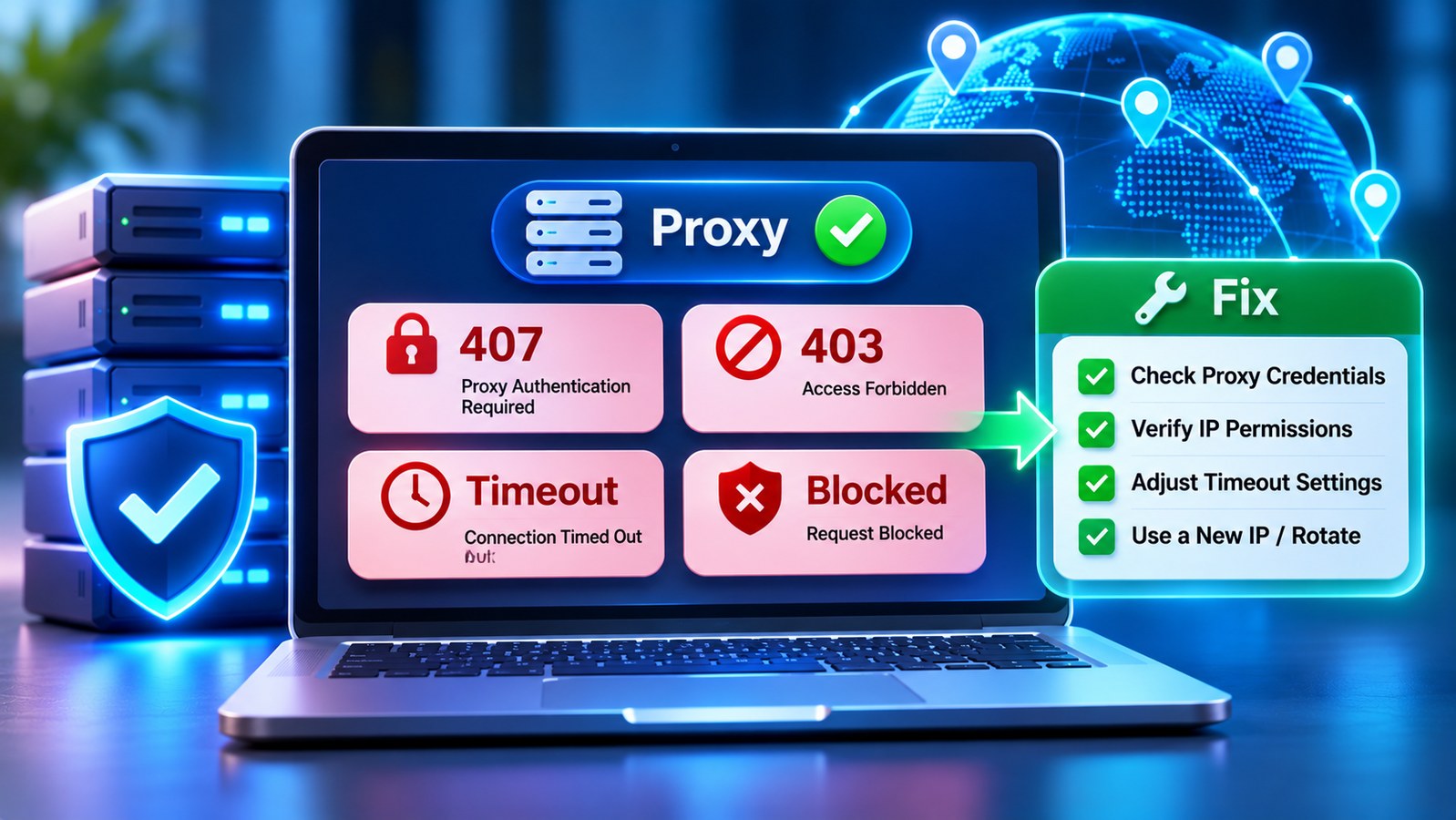
Proxy connections make it easier for businesses and individuals to manage network access, conduct regional website testing, and carry out different online activities. However, even a correctly purchased proxy service can occasionally produce connection errors.
You may encounter a 407 authentication message, a 403 Forbidden page, a connection timeout, or a website that suddenly refuses to load. Sometimes the proxy works perfectly in one browser but fails in another application.
These problems can be frustrating, particularly when they interrupt an important business task.
The first step towards fixing a proxy error is understanding where the problem originates. Not every error indicates that the proxy server is faulty. Some issues are caused by incorrect credentials, while others originate from the destination website, network configuration, or temporary server problems.
This troubleshooting guide explains the most common proxy errors, their causes, and the practical steps you can take to resolve them.
Understanding Where a Proxy Connection Can Fail
A typical proxy connection involves several components working together.
Your device sends a request to the proxy server. The proxy processes that request and forwards it to the destination website. The website then sends a response through the connection.
An error can occur at different stages.
For example, if your username and password are incorrect, the proxy may reject the connection before the website receives anything.
If the proxy connects successfully but the website refuses access, the problem may involve website permissions or security restrictions.
This distinction is important because changing your proxy settings will not necessarily resolve an error caused by the destination website.
Before troubleshooting, identify whether the error appears during proxy authentication, connection establishment, or website access.
1. Error 407: Proxy Authentication Required
Meaning: The proxy server requires valid authentication before processing your request.
A 407 response is one of the most common proxy configuration errors.
It usually appears when the proxy server expects authentication information but does not receive acceptable credentials.
For example, you may have purchased a proxy subscription and entered the server address correctly, but forgotten to configure the username and password.
The server recognises the request but refuses to process it until authentication is completed.
Common Reasons for Error 407
Several configuration problems can trigger this response.
Incorrect username or password: A single typing mistake can prevent authentication.
Expired subscription: Some providers restrict access when a subscription expires or payment remains incomplete.
Incorrect authentication method: Your provider may require IP authorisation instead of username and password authentication.
Unauthorised public IP: If your provider uses IP authentication, your current public IP address may not be registered.
Incorrect application settings: The browser or software may not be sending authentication details correctly.
How to Fix Error 407
Start by checking the credentials provided by your proxy service.
Open your provider dashboard and copy the correct username and password. Pay attention to special characters, capital letters, and spaces.
Next, verify the authentication method. If your provider uses an authorised IP address, check whether your current internet connection matches the registered address.
Then review the hostname and port number. Even valid credentials will not help if the application is connecting to the wrong server.
Finally, restart the browser or application and test the connection again.
If the error continues, contact the provider and request confirmation that your account is active.
2. Error 403: Forbidden
Meaning: The destination server understood the request but refused to provide access.
A 403 Forbidden error is different from a 407 authentication error.
In this situation, the proxy connection may already be working, but the website does not permit the requested action.
For example, you may successfully connect through a proxy but receive an access denied message when opening a particular page.
Why Does Error 403 Happen?
IP reputation: The website may associate the IP address with previous suspicious activity.
Geographical restrictions: Certain pages or services may only be available in specific regions.
Account permissions: The requested resource may require an authorised login or a particular access level.
Website firewall rules: Security systems may reject requests that do not meet the website’s requirements.
Unusual request behaviour: Repeated requests or unexpected access patterns may trigger additional security checks.
Incorrect website configuration: Sometimes the website itself has permission settings or server rules that unintentionally block legitimate visitors.
How to Fix Error 403
First, determine whether the restriction affects only the proxy connection or also your normal internet connection.
If appropriate, test the website without the proxy.
Next, check whether the requested page requires an account or additional permissions. Sign in through the normal process if necessary.
Review the geographical requirements of the website and confirm that the selected proxy location is appropriate.
Clear outdated cookies and browser cache if the website appears to be using an incorrect session.
If you believe the restriction is a mistake, contact the website administrator or support team.
Avoid repeatedly changing IP addresses to get around an access restriction. The correct approach is to understand why access was denied and resolve the underlying issue.
3. Connection Timeout Errors
Meaning: The connection did not receive a response within the expected time.
Timeout errors occur when a connection takes too long to establish or when a server does not respond within the configured waiting period.
They can happen even when your proxy credentials are correct.
For example, your browser may display a message indicating that the website took too long to respond.
Common Causes
- The proxy server is temporarily unavailable.
- Your internet connection is unstable.
- The selected server is experiencing congestion.
- The destination website is responding slowly.
- The configured port is incorrect.
- A firewall is blocking the connection.
- The application has an insufficient timeout setting.
- The network route between the proxy and destination server is experiencing problems.
How to Resolve Timeout Errors
Check your internet connection: Open several websites without the proxy to confirm that your normal connection works.
Verify server availability: Check the provider’s service status or maintenance announcements.
Confirm the proxy port: Compare the port configured in your application with the provider’s instructions.
Try another supported location: A geographically closer server may offer a better connection route.
Review application timeout settings: Some software allows you to adjust how long it waits for a connection or response.
Test another application: If the proxy works elsewhere, the issue may be related to the original browser or software configuration.
If timeouts continue across multiple applications, contact the provider with the affected server address and approximate error time.
4. Error 429: Too Many Requests
Meaning: The destination server has received more requests than it currently allows.
A 429 response indicates that the website is applying request limits.
This can happen when an application sends too many requests within a short period.
For example, a research tool may repeatedly request the same page without sufficient waiting time.
The website may temporarily limit further requests to protect its infrastructure.
How to Fix Error 429
Reduce the request frequency and respect the website’s published limits.
If the server provides a Retry After instruction, follow the specified waiting period.
Review automated workflows and avoid unnecessary repeated requests.
For business research, use official APIs or approved access methods when available.
Changing proxy IP addresses does not remove the obligation to follow the website’s request limits.
5. Error 502: Bad Gateway
Meaning: A gateway or intermediary server received an invalid response from an upstream server.
A 502 Bad Gateway response may appear when a proxy server cannot obtain a valid response from the destination server.
It can be caused by temporary infrastructure problems, upstream server failures, or network communication issues.
How to Fix Error 502
First, refresh the page after a short interval.
Check whether the destination website is experiencing an outage.
If the issue continues, test another website through the same proxy. If other websites work, the problem may be specific to the destination server.
If several websites return the same error, contact your proxy provider and ask it to investigate the upstream connection.
6. Error 503: Service Unavailable
Meaning: The server is temporarily unable to handle the request.
A 503 response usually indicates that the destination service is unavailable.
The server may be undergoing maintenance, experiencing heavy traffic, or dealing with a temporary infrastructure problem.
This error does not automatically mean your proxy is broken.
How to Fix Error 503
Wait briefly and retry the request.
Check whether the website has announced maintenance.
If you manage the destination website, investigate server resources and application logs.
If you are only accessing the website, contact its support team if the problem continues.
7. Error 504: Gateway Timeout
Meaning: A gateway server did not receive a timely response from an upstream server.
A 504 error is related to connection timeouts but specifically indicates that a gateway or intermediary did not receive the expected upstream response in time.
The proxy may be waiting for the destination website, which is taking too long to respond.
How to Fix Error 504
Check whether the destination website is responding normally.
Try accessing another website through the same proxy.
If the issue affects only one destination, the website may be experiencing a performance problem.
If multiple destinations are affected, ask the provider to investigate network routing and server availability.
Quick Reference: Common Proxy Error Codes
| Error | Meaning | Likely Cause | Recommended Action |
|---|---|---|---|
| 403 | Forbidden | Access restriction | Review permissions |
| 407 | Authentication required | Invalid credentials | Verify authentication |
| 408 | Request timeout | Delayed request | Check connection |
| 429 | Too many requests | Request limits | Reduce request frequency |
| 502 | Bad gateway | Upstream problem | Check server status |
| 503 | Service unavailable | Temporary outage | Retry later |
| 504 | Gateway timeout | Delayed upstream response | Investigate network |
How to Identify Whether the Proxy or Website Is Responsible
This is one of the most useful troubleshooting steps.
Instead of changing several settings immediately, perform a few controlled tests.
First, confirm that your normal internet connection works.
Second, connect through the proxy and open a different website.
Third, check whether the same error appears across multiple applications.
Fourth, compare the results with the provider’s service status.
For example, if only one website returns a 403 response while other websites work correctly, the restriction may be specific to the destination.
However, if every website fails with a 407 response, proxy authentication is a more likely explanation.
Understanding the specific causes of website access restrictions is also important when troubleshooting. The explanation of 403 Forbidden errors and why they happen provides additional context about website restrictions, access permissions, and server responses.
A Practical Proxy Troubleshooting Checklist
When a proxy suddenly stops working, follow this sequence.
- Confirm that your internet connection is active.
- Verify the proxy hostname and port.
- Check the username and password.
- Confirm the required authentication method.
- Make sure your subscription is active.
- Verify that the selected protocol is supported.
- Test the connection using another application.
- Check whether the destination website is experiencing problems.
- Review the provider’s service status.
- Contact technical support if the problem continues.
Keep a record of the error code, affected website, testing time, and application used. These details can help the provider identify the problem more quickly.
How to Prevent Proxy Errors in the Future
Reliable proxy usage begins with proper configuration.
Use a provider that offers clear connection instructions, transparent usage policies, and responsive support.
Store proxy credentials securely and avoid sharing them with unauthorised users.
Maintain a record of the server addresses, ports, protocols, and authentication methods used by different applications.
For business workflows, monitor connection performance and review recurring errors.
Understanding common error messages before they occur can also reduce troubleshooting time and prevent unnecessary changes to working configurations.
Final Thoughts
Proxy errors can appear complicated, but most can be traced to a specific connection, authentication, or access problem.
A 407 response usually indicates an authentication issue. A 403 response means access has been refused. Timeout errors point towards delayed communication, while 429, 502, 503, and 504 responses provide additional information about request limits and server availability.
The best troubleshooting approach is to identify where the connection fails before changing your configuration.
By maintaining accurate settings, monitoring connection quality, and choosing a dependable provider, businesses can reduce interruptions and maintain more reliable proxy operations.
Frequently Asked Questions
1. What is the difference between 403 and 407 proxy errors?
A 403 error means the destination website has refused access. A 407 error means the proxy server requires valid authentication before processing the request.
2. Why does my proxy keep timing out?
Possible reasons include an unavailable proxy server, unstable internet connection, network congestion, incorrect port configuration, or a slow destination website.
3. Can incorrect proxy credentials cause connection errors?
Yes. Incorrect usernames, passwords, or authentication settings can prevent a proxy connection and commonly result in a 407 response.
4. Does a 403 error mean my proxy is not working?
Not necessarily. The proxy may have connected successfully, but the destination website may have refused the request.
5. How do I check whether my proxy server is online?
Use the provider’s connection testing instructions or an approved network diagnostic tool. You can also test the proxy in another supported application.
6. What does error 429 mean when using a proxy?
A 429 response means the destination server is limiting requests because too many have been received within a particular period. Reduce request frequency and follow the website’s usage policies.
7. Why does my proxy work on one website but not another?
Different websites have different security systems, geographical restrictions, access permissions, and IP reputation requirements.
8. Should I change my proxy whenever I receive an error?
No. First identify the cause. Authentication errors, website permissions, and temporary server problems require different solutions.
9. What should I do if every website shows a proxy error?
Check your internet connection, authentication details, server address, port, and subscription status. If the problem continues across applications, contact your proxy provider.
10. Can a proxy provider fix a 403 error?
The provider may be able to investigate IP related restrictions or server configuration issues. However, if the destination website has independently refused access, its administrator may need to review the restriction.