 dev
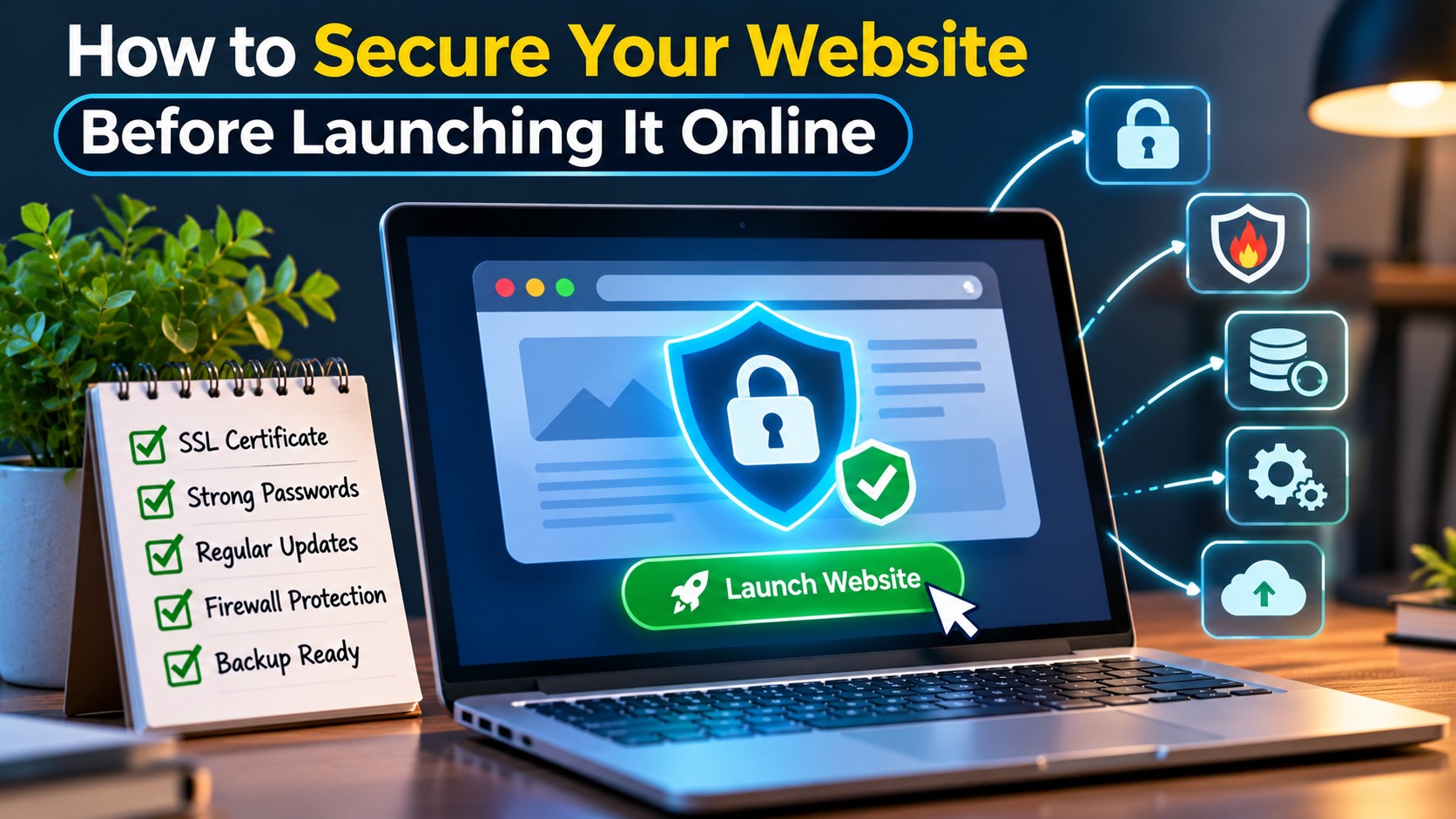
Launching a website involves more than choosing a domain name, designing pages, and publishing content. Before making a website publicly accessible, it is important to ensure that the underlying infrastructure, applications, user accounts, and data are properly protected.
Website security is often overlooked during development. Many website owners focus on appearance, functionality, and performance, leaving important security settings until after launch. Unfortunately, even a newly created website can become a target for automated attacks, malicious login attempts, malware, and data theft.
Whether you are launching a personal blog, business website, online store, or web application, security should be part of your preparation process.
A secure website helps protect visitors, maintain business operations, safeguard sensitive information, and build user confidence.
This guide explains how to secure your website before launching it online, including hosting configuration, SSL certificates, access controls, software updates, backups, and ongoing monitoring.
1. Choose a Reliable Web Hosting Provider
Your hosting environment plays an important role in website security. A website may have well written code and a secure design, but weaknesses in the hosting infrastructure can still expose it to risks.
Before selecting a hosting provider, understand the security features included in its plans.
A reliable hosting provider should offer:
- Server monitoring and security management.
- Regular infrastructure updates.
- Network level protection.
- Backup options.
- Access control features.
- Technical support.
- Clear security policies.
Shared hosting, VPS hosting, dedicated servers, and cloud hosting offer different levels of control and resource allocation.
For example, shared hosting places multiple websites on the same server environment. It can be affordable for smaller websites, but users have less control over the underlying infrastructure.
VPS hosting provides an isolated virtual server environment with more control over server configuration. It can be suitable for growing websites, applications, and businesses that require additional flexibility.
The right hosting option depends on your technical knowledge, website requirements, traffic expectations, and budget.
2. Install an SSL Certificate and Enable HTTPS
An SSL/TLS certificate helps establish an encrypted connection between a visitor’s browser and your website.
Websites using HTTPS protect information transmitted between the browser and server from being easily read or modified while in transit.
This is particularly important for websites that collect:
- Login credentials.
- Contact information.
- Customer details.
- Payment information.
- Registration data.
- Private user submissions.
Most modern hosting providers offer SSL certificate installation through their hosting control panels. Some also provide automatic certificate renewal.
After installing the certificate, check that:
- Your website loads using HTTPS.
- HTTP requests redirect correctly to HTTPS.
- Internal resources load securely.
- Forms and login pages use encrypted connections.
- The certificate is valid and has not expired.
Avoid assuming that a website is fully secure simply because a browser displays a padlock. HTTPS protects data in transit, but it does not prevent malware, weak passwords, insecure plugins, or server vulnerabilities.
3. Use Strong Passwords and Secure Administrator Accounts
Administrator accounts provide access to important website settings. If an unauthorised person gains control of an administrator account, they may be able to change website content, access sensitive information, or install malicious software.
Weak passwords are one of the easiest security problems to prevent.
Before launching your website, review all administrator and hosting accounts.
Follow these practices:
- Use long and unique passwords.
- Avoid common words and predictable combinations.
- Never reuse passwords across different services.
- Enable multifactor authentication where available.
- Remove unnecessary administrator accounts.
- Give users only the permissions they need.
If you are using WordPress, avoid sharing the main administrator account with every person who works on the website.
Instead, create individual accounts with suitable roles. For example, a content writer may only need editing permissions, while a developer may require additional technical access.
A password manager can also help store and generate strong credentials.
4. Keep Your Website Software Updated
Outdated website software can introduce security risks.
Content management systems, themes, plugins, server applications, and development frameworks regularly receive updates to address bugs, improve functionality, and fix security vulnerabilities.
Running outdated software may expose your website to known weaknesses.
Before launch, review all installed components.
For WordPress websites, check:
- WordPress core version.
- Active theme version.
- Installed plugin versions.
- PHP compatibility.
- Database software compatibility.
- Server application updates.
Remove themes and plugins that are no longer needed. Unused components can increase maintenance requirements and create additional opportunities for vulnerabilities.
Before installing an update, make sure you have a recent backup and test important website functions afterward.
Avoid installing plugins from unknown sources or using modified premium software from untrusted websites.
5. Configure Your Website Firewall
A web application firewall helps filter and monitor incoming HTTP traffic before it reaches your website.
Depending on its configuration, a firewall can help identify and block suspicious requests, malicious traffic patterns, and certain types of automated attacks.
Website owners may use:
- Hosting provider firewalls.
- Web application firewalls.
- Cloud based security services.
- Server level firewall configurations.
- Application specific security controls.
For example, a firewall may help reduce exposure to common web attacks by identifying suspicious requests or restricting unwanted traffic.
If your website runs on a VPS, server firewall configuration is particularly important.
Only allow the ports required for your applications and administration. Restrict remote server access where practical, and avoid exposing unnecessary services to the public internet.
Firewall rules should be tested carefully to ensure legitimate visitors and business applications are not blocked.
6. Protect Your Website Against Malware
Malware can affect website files, databases, server processes, and visitor experiences.
An infected website may redirect visitors to suspicious pages, display unwanted advertisements, distribute malicious files, or expose confidential information.
Website security should include preventive measures and regular malware checks.
Before launch:
- Scan website files for suspicious code.
- Review recently modified files.
- Install trusted security software where appropriate.
- Remove unused scripts and applications.
- Check file permissions.
- Monitor unusual server activity.
WordPress users can consider established security plugins that offer malware scanning, file integrity checks, and login protection.
However, a security plugin should not replace secure hosting, regular updates, access controls, and proper server configuration.
If malware is discovered, investigate the cause instead of simply deleting the visible infected file. Check whether the attacker gained access through a vulnerable plugin, compromised password, or insecure server configuration.
7. Set Appropriate File and Folder Permissions
File permissions determine who can read, modify, or execute files on your server.
Incorrect permissions may allow unauthorised users or processes to change important website files.
For websites hosted on Linux based servers, permissions should follow the principle of least privilege.
This means users and applications should receive only the access they require.
Before launch, review:
- Website directory permissions.
- Configuration file permissions.
- Upload folder permissions.
- Database configuration access.
- Ownership of website files.
- Permissions for executable scripts.
Avoid setting broad permissions simply to solve an upload or installation problem.
For example, giving every user full write access to website directories can create unnecessary security exposure.
If you are using a managed hosting service, follow the provider’s recommended permission settings. For VPS environments, understand the operating system and web server configuration before changing permissions.
8. Secure Your Database
Your website database may contain important information such as user accounts, product details, website settings, contact submissions, and order records.
If an attacker gains unauthorised access, the consequences can extend beyond the website itself.
Database security should be included in your prelaunch checklist.
Important practices include:
- Use strong database credentials.
- Avoid default database usernames and passwords.
- Restrict database access to authorised applications.
- Keep database software updated.
- Avoid exposing database services publicly.
- Take regular database backups.
- Protect configuration files containing database credentials.
For a VPS environment, database services should generally be accessible only to the applications or trusted systems that require them.
Website developers should also use secure coding practices, including parameterised queries, to reduce the risk of SQL injection vulnerabilities.
9. Create Automatic Website Backups
Backups help restore your website if files become corrupted, an update causes problems, or a security incident affects your data.
A website backup should include both website files and the database.
Depending on the website, important backup items may include:
- Website source files.
- Images and media uploads.
- Database records.
- Configuration files.
- Application settings.
- Important server configuration data.
Do not assume that having a backup feature automatically means your website can be restored successfully.
Test the restoration process before launch. A backup that cannot be restored may not provide the protection you expect.
Follow a Practical Backup Strategy
A useful approach is to maintain multiple copies of important website data.
For example:
- Keep a recent backup on the hosting environment when supported.
- Store another copy separately from the main server.
- Protect backup files with appropriate access controls.
- Set a suitable backup frequency.
- Test restoration periodically.
Websites with frequent customer transactions or content updates may require more frequent backups than simple informational websites.
10. Protect Website Forms and User Input
Contact forms, registration pages, search boxes, comment sections, and checkout pages allow visitors to submit information.
If these inputs are not handled securely, attackers may exploit weaknesses to inject malicious content, manipulate database queries, or abuse application functionality.
Before launching your website, test every form and user input field.
Check for:
- Input validation.
- Output encoding.
- CSRF protection where applicable.
- Spam prevention.
- Secure file upload restrictions.
- Appropriate error handling.
- Server side validation.
Do not rely only on browser based validation. Users can bypass client side checks, so important validation must also happen on the server.
For file uploads, restrict accepted file types, file sizes, and upload locations. Never allow uploaded files to execute as server side code.
11. Enable Login Protection and Access Monitoring
Login pages are common targets for automated password guessing and credential abuse.
A website should have suitable login protection before it becomes publicly available.
Consider implementing:
- Multifactor authentication.
- Login attempt restrictions.
- Strong password requirements.
- Secure session management.
- Login activity monitoring.
- Account lockout or rate limiting where appropriate.
For WordPress websites, changing the default login URL may reduce some automated login noise, but it should not be treated as a primary security measure.
Strong authentication and proper access controls remain more important.
Also review user accounts periodically. Remove accounts belonging to former employees, contractors, or people who no longer need access.
12. Review Your Website’s Privacy and Data Protection Practices
Website security is closely connected to responsible data handling.
If your website collects personal information, visitors should understand what information is collected, why it is collected, and how it is handled.
Before launch, review your data collection practices.
Consider the following:
- What information do your forms collect?
- Is every requested field necessary?
- Where is customer information stored?
- Who can access the collected data?
- How long is the information retained?
- How can users request access or deletion where applicable?
- Are third party services receiving personal information?
Publish an appropriate privacy policy and ensure that your website follows applicable data protection requirements.
If you operate an online store, also review payment processing arrangements and avoid storing sensitive payment information unless your business has the appropriate security controls and compliance arrangements.
13. Test Your Website Before Making It Public
A website should go through a security and functionality review before launch.
Testing helps identify issues that may have been missed during development.
Start by checking the most important website components.
Website Access
Confirm that administrator pages, login systems, and restricted areas are protected.
HTTPS Configuration
Verify that all important pages use HTTPS and that certificates are valid.
Forms and User Input
Submit test information through contact forms, registration pages, and other input fields.
Software Versions
Check that the CMS, plugins, themes, and server applications are updated.
Backup Restoration
Confirm that your backup files can be restored successfully.
Server Configuration
Review exposed ports, remote access settings, and unnecessary services.
Error Messages
Make sure the website does not expose sensitive technical information through public error messages.
For more complex applications, consider a professional security assessment before launch.
14. Build an Ongoing Website Security Routine
Website security does not end when the launch process is complete.
New vulnerabilities, software updates, account changes, and suspicious activity can create risks over time.
A regular maintenance routine helps keep your website protected.
Daily Checks
- Monitor important website availability.
- Review unusual login activity where appropriate.
- Check critical security alerts.
Weekly Checks
- Review available software updates.
- Check backup completion.
- Review suspicious website activity.
- Confirm that important website functions work correctly.
Monthly Checks
- Review administrator accounts.
- Audit installed plugins and applications.
- Check hosting resource usage.
- Review firewall and access settings.
- Test important recovery procedures.
The exact schedule depends on website complexity, traffic, and the sensitivity of the information being handled.
Conclusion
Securing your website before launch is an important part of building a reliable online presence.
Start with a trustworthy hosting provider, enable HTTPS, secure administrator accounts, update website software, configure firewalls, and protect your database. Add regular backups, malware checks, secure form handling, and access monitoring to strengthen your overall security.
A website does not become secure through a single plugin or setting. Protection comes from combining good hosting practices, secure development, proper access controls, and ongoing maintenance.
By following a structured security checklist before launch, website owners can reduce avoidable risks and create a safer experience for visitors and customers.
Frequently Asked Questions
1. What should I do first to secure a new website?
Start by choosing reliable hosting, installing an SSL/TLS certificate, setting strong administrator passwords, updating website software, and configuring appropriate access controls.
2. Is HTTPS enough to protect my website?
No. HTTPS encrypts communication between the browser and website, but it does not protect against malware, weak passwords, vulnerable plugins, or insecure server configurations.
3. Do I need a security plugin for WordPress?
A security plugin can provide useful features such as malware scanning, login protection, and file monitoring. However, it should complement regular updates, secure hosting, backups, and good access management.
4. How often should I back up my website?
The frequency depends on how frequently your website changes. A website with regular customer transactions may need daily or more frequent backups, while a simple informational website may require a different schedule.
5. Is VPS hosting more secure than shared hosting?
VPS hosting provides greater control over server configuration and an isolated virtual environment. However, security depends on how the server is configured and maintained. A poorly managed VPS can be less secure than properly managed shared hosting.
6. How can I protect my website from hackers?
Use strong authentication, update software regularly, configure a firewall, monitor suspicious activity, protect database access, and maintain reliable backups.
7. What is a web application firewall?
A web application firewall monitors and filters HTTP traffic between visitors and a web application. Depending on its configuration, it can help protect against certain common web attacks and suspicious requests.
8. Why are website file permissions important?
File permissions control who can read, modify, or execute files. Incorrect permissions may allow unauthorised changes to website files or expose sensitive information.
9. Should I remove unused WordPress plugins and themes?
Yes. Removing unnecessary plugins and themes reduces maintenance requirements and eliminates components that could contain outdated or vulnerable code.
10. How do I know if my website has malware?
Warning signs may include unexpected redirects, suspicious files, unusual administrator accounts, unexplained changes to website content, and security alerts. Use trusted scanning tools and investigate suspicious activity.
11. What information should a website privacy policy include?
A privacy policy should explain what personal information is collected, how it is used, how it is stored, whether it is shared with third parties, and what rights users have under applicable laws.
12. Can I secure my website without technical knowledge?
Basic security steps such as using strong passwords, enabling HTTPS, updating software, and configuring backups can be handled through many hosting dashboards. However, advanced server security and application testing may require professional assistance.